
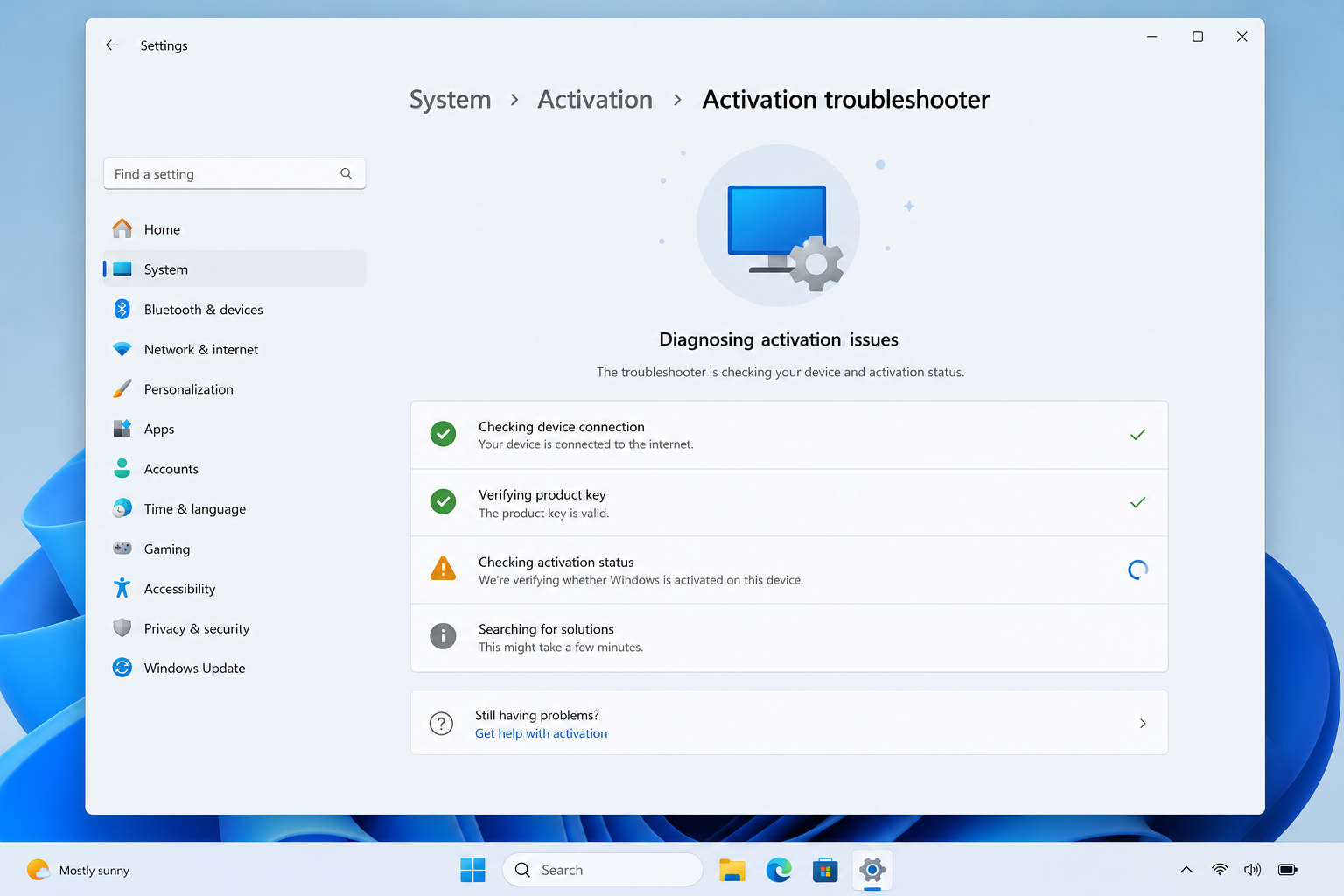
When Windows suddenly shows “Activate Windows” or a vague error number instead of a working desktop, the fastest fix is the windows activation troubleshooter built into Settings — it automatically checks your license status, hardware ID, and Microsoft account link, then tells you whether the problem is a hardware change or a genuine license issue. This guide walks through running it, reading the result, and knowing which error codes mean what.
What Is the Windows Activation Troubleshooter?
The windows activation troubleshooter is a built-in diagnostic tool, not a third-party app. It’s bundled directly into Windows 10 and Windows 11 and designed to re-check your digital license against Microsoft’s activation servers without you having to manually re-enter anything.
It handles three common scenarios on its own:
- You recently changed hardware (new motherboard, SSD, or a full reinstall) and the digital license no longer matches.
- You upgraded from Windows 10 to Windows 11 on the same device and the activation didn’t carry over.
- Windows lost its activation status after a Windows Update or a clean install.
It does not generate new product keys, recover lost keys, or fix a key that was never genuine — for those, you’re dealing with a license problem, not something the troubleshooter can patch.
How to Run the Windows Activation Troubleshooter
You run the windows activation troubleshooter from the Activation settings page, and the steps are nearly identical on both current versions of Windows.
- Open Settings (Windows key + I).
- On Windows 11, go to System > Activation. On Windows 10, go to Update & Security > Activation.
- If you see a warning that Windows isn’t activated, select Troubleshoot.
- Follow the on-screen prompts — the tool will ask whether you recently changed hardware.
- If prompted, sign in with the Microsoft account that was linked to the digital license before activation.
If the troubleshooter resolves the mismatch, Windows will display “Windows is activated” within a minute or two. If it can’t fix the issue automatically, it returns a specific error code — and that code is the real clue to what’s going on.
Diagnosing a Failed Windows Activation: Step by Step
Before assuming the worst, rule out the simple causes first — most failed activation cases trace back to one of a handful of root issues rather than a corrupted license.
Start With the Basics
- Confirm your internet connection is stable; activation servers need a live connection to respond.
- Re-check the 25-character product key for typos, especially characters like 0/O, 1/I, or 8/B.
- Restart the PC and try activation again — some activation failures are just a stuck background service.
- Check Windows Update for a pending update; Microsoft has occasionally required specific cumulative updates before activation will complete.
Then Run the Windows Activation Troubleshooter
If the basics check out, running the windows activation troubleshooter is the next step. It performs a deeper check than a manual retry and will flag whether the device’s hardware ID still matches the one tied to your digital license on Microsoft’s servers.
Common Activation Error Codes and What They Mean
Not all activation errors are the same problem wearing a different number. Some point squarely at hardware, others at the license itself. Here are the codes you’ll see most often.
Error Codes That Signal a Hardware Change
These typically mean Microsoft’s servers see a different machine than the one your license was last activated on — common after a motherboard swap, major hardware upgrade, or OS reinstall on new hardware.
- 0xC004F034 — the system can’t contact the activation server or detects a mismatch between the digital license and the current hardware. This is the classic “I just rebuilt my PC” error, and it’s exactly what the troubleshooter’s “I changed hardware” option is built to resolve.
- 0xC004F211 — often appears after a dual-boot setup or hardware partition change that confuses the stored license fingerprint.
In these cases, the windows activation troubleshooter is usually all you need — it re-links the license to the new hardware configuration once you confirm you’re the same account owner.
Error Codes That Signal a Genuine License Problem
These codes mean the key itself is invalid, already used, or doesn’t match the edition you installed — no hardware fix will touch them.
- 0x8007007B — the product key entered doesn’t match the Windows edition installed (for example, an Enterprise key on a Home or Pro install), or in networked environments, the KMS server address can’t be resolved.
- 0xC004C003 — the key has been blocked, flagged as already activated elsewhere, or detected as non-genuine. This is the strongest signal of a counterfeit or resold key.
- 0xC004F074 — the device can’t reach a Key Management Service server, which is a corporate licensing infrastructure issue rather than anything the retail activation troubleshooter can fix.
If you land on one of these, don’t keep re-running the troubleshooter — it’s not a connectivity or hardware issue, and the fix is a valid replacement key.
When the Windows Activation Troubleshooter Can’t Fix the Problem
The windows activation troubleshooter is excellent at hardware re-linking, but it has clear limits, and recognizing them saves time.
It generally cannot help when:
- The key was never genuine or was already used on another device under the license terms.
- You’re activating a Volume License (KMS/MAK) edition outside a licensed network.
- The Windows edition installed doesn’t match the key (Home vs. Pro vs. Enterprise).
- Your Microsoft account isn’t the one originally linked to the digital license.
In any of these situations, the next move is either tracking down the correct key or purchasing one. Microsoft’s own documentation on Windows activation errors breaks down several of these codes directly from the source if you want to double-check a specific one.
Reactivating Windows After a Hardware Change
If the troubleshooter confirms a hardware change is the cause, reactivation is usually a short process rather than a full reinstall.
- Go to Settings > Activation and select Troubleshoot.
- Choose “I changed hardware on this device recently.”
- Sign in with the Microsoft account tied to the original digital license.
- Select the device from the list shown and confirm reactivation.
If your license was never linked to a Microsoft account, this option won’t be available, and you’ll need the original 25-character product key instead — entered through Settings > System > Activation > Change product key.
Preventing Future Activation Errors
A little housekeeping avoids most repeat trips to the windows activation troubleshooter.
- Link your digital license to a Microsoft account before any planned hardware upgrade — this makes future re-activation nearly automatic.
- Keep a copy of your 25-character product key somewhere safe, separate from the PC it’s installed on.
- Buy license keys only from sources that provide an original activation key and official download links, so you’re not troubleshooting a blocked or shared key later.
- Note that Windows 10 reached the end of mainstream support on October 14, 2025, so activation and update behavior on that version is increasingly inconsistent — it’s worth planning a move to Windows 11 where support is active.
If you’re setting up a new machine or replacing an unreliable key, our Windows 10 Pro license keys page and our step-by-step Windows 10 Pro activation guide cover the full install and activation process from a clean key, which avoids most of the error codes discussed above entirely.
FAQ
Does the Windows Activation Troubleshooter work on Windows 11?
Yes. On Windows 11 it’s found under Settings > System > Activation > Troubleshoot, and it works the same way as on Windows 10 — checking your digital license against your hardware and Microsoft account.
Why does Windows say “hardware changed” after a license problem?
Windows ties a digital license to a hardware fingerprint built from components like your motherboard and storage. Swap enough of them, or install on new hardware entirely, and Microsoft’s servers see a mismatch — triggering the hardware-change message even though your license itself is fine.
Can I run the activation troubleshooter without internet?
No. The troubleshooter needs to contact Microsoft’s activation servers to verify your license and hardware ID, so a stable internet connection is required for it to complete.
What error code means my license key is already used?
Error 0xC004C003 typically means the key has been blocked or flagged as already activated elsewhere. This points to a genuine license problem, not something the troubleshooter can resolve on its own.
How do I contact Microsoft support if the troubleshooter fails?
If the windows activation troubleshooter returns an error it can’t resolve, Microsoft’s support site has a dedicated activation help page with contact options, or you can reach out through the support channel of whichever retailer supplied your license key.
Will reinstalling Windows fix an activation error?
Sometimes, but only for software corruption issues — not for hardware-mismatch or license-block errors. A clean install won’t fix a blocked key or an edition mismatch; it will just reproduce the same error after setup.
