
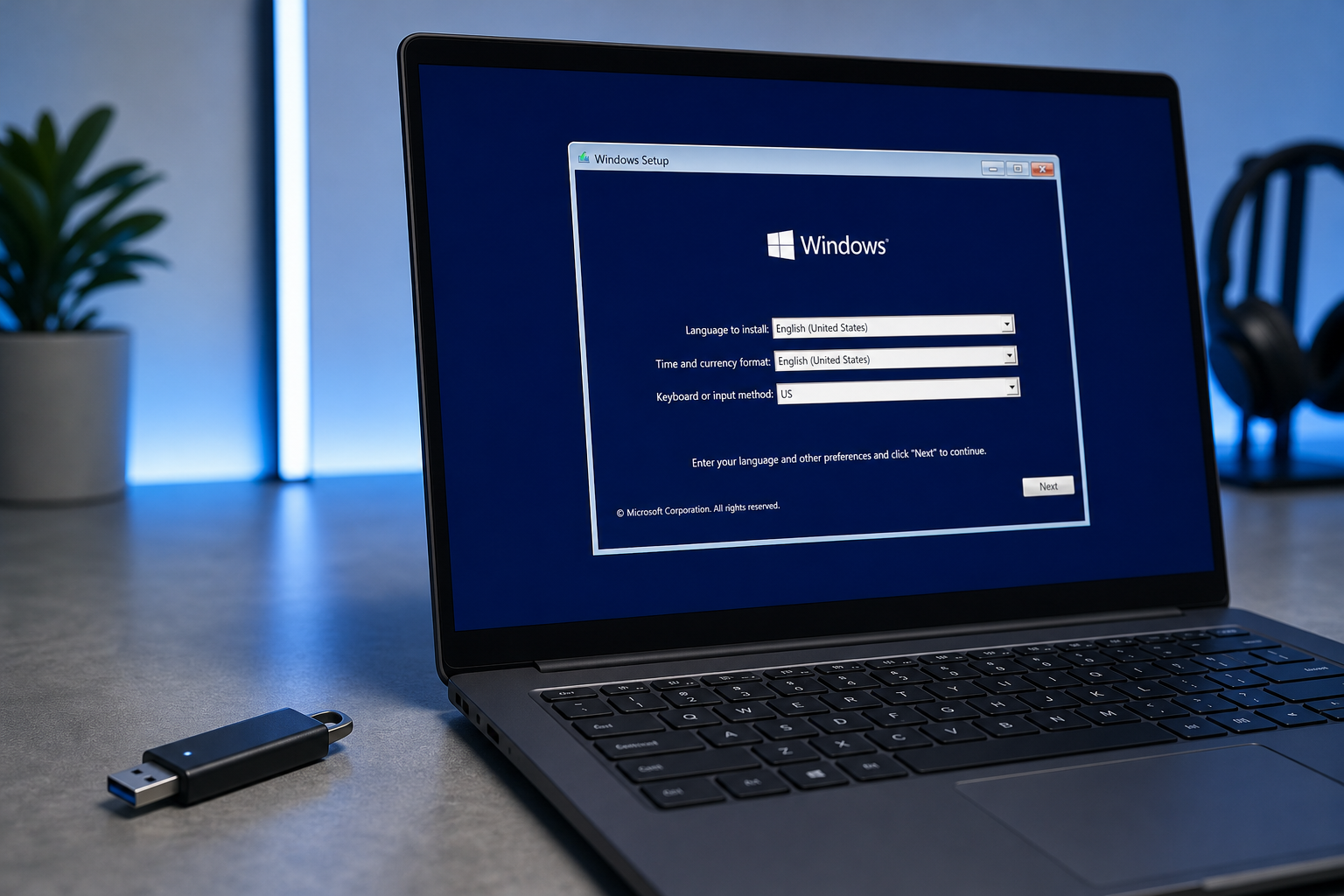
Creating windows installation media means downloading a genuine Windows ISO and turning it into a bootable USB drive or DVD you can use to install or repair Windows. The safest route for most people is Microsoft’s own Media Creation Tool, but third-party tools have a place too — as long as you know when to use them and how to confirm your download isn’t corrupted.
This guide walks through the practical decisions: which tool to use, which edition to pick before you start, and how to catch a bad ISO before it wastes an afternoon of your time.
What Is Windows Installation Media and Why You’d Need It
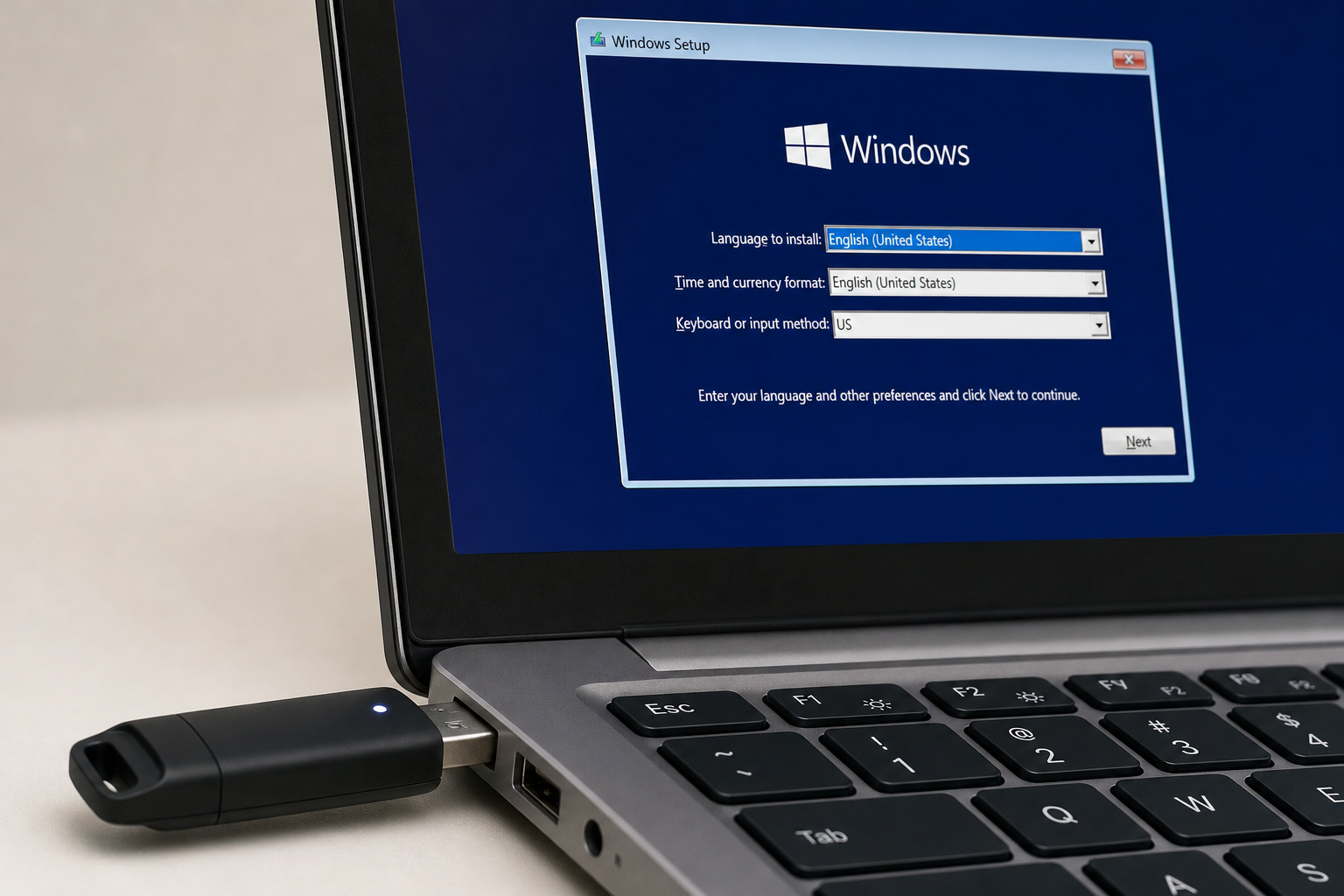
Windows installation media is a bootable copy of the Windows setup files — stored on a USB flash drive or burned to a DVD — that lets you install Windows from scratch, repair a broken installation, or upgrade a PC that won’t update normally through Windows Update. You’ll typically need it for a clean install, a dual-boot setup, replacing a failing hard drive, or recovering a PC that won’t boot into Windows at all.
Unlike an in-place upgrade, booting from installation media gives you full control over partitioning, lets you wipe malware-infected drives completely, and is often the only reliable fix when Windows Update itself is broken.
Official Tool vs Third-Party Tools for Windows Installation Media
The official Media Creation Tool is the safer default for most users, while third-party tools earn their keep when you need extra flexibility — like building media for an older edition, creating a multi-version USB, or working around hardware checks.
Microsoft’s Media Creation Tool: Pros and Cons
Microsoft’s Media Creation Tool, downloaded directly from the official Windows 11 download page, is free and does two jobs: it downloads the correct ISO for your edition and language, and it can write that ISO straight to a USB drive, formatting it and making it bootable automatically. It’s the tool Microsoft itself recommends in its installation media support documentation, and because it pulls files straight from Microsoft’s servers, there’s no risk of a tampered or bundled-adware ISO.
- Pros: free, official, no third-party risk, simple step-by-step wizard
- Pros: automatically picks the right edition language pack for your region
- Cons: limited customization — no option to slipstream drivers or skip hardware checks
- Cons: occasionally fails with generic error codes on slow or unstable connections
If you’ve never built installation media before, our step-by-step Media Creation Tool walkthrough covers the exact screens you’ll see from download to finished USB.
Third-Party ISO Tools: When They Make Sense
Third-party tools like Rufus, Ventoy, or WoeUSB make sense when you already have a verified ISO file and want more control over how it’s written to a drive — for example, bypassing the TPM 2.0 and Secure Boot checks for an unsupported clean install, or building a multi-boot USB with several operating systems on one drive. These tools don’t download Windows for you; you still need a legitimate ISO as the source. The risk with third-party tools isn’t usually the writing software itself (Rufus, for instance, is open-source and widely trusted) — it’s pairing it with an ISO from an unofficial mirror site.
Choosing the Right Edition Before You Build Windows Installation Media

Pick your edition — Home or Pro — before you create your media, because the Media Creation Tool bakes the edition into the ISO and switching later usually means starting over. Windows 11 Home covers everyday use; Windows 11 Pro adds BitLocker device encryption, Remote Desktop hosting, Hyper-V virtualization, and Group Policy management that IT professionals and power users rely on.
Windows 11 Home vs Pro: Which Do You Actually Need
If you’re setting up a personal laptop or a home desktop with no domain requirements, Home is almost always enough, and it’s considerably cheaper — a genuine Windows 11 Home license key currently runs €14.70 at Top Key Shop. If you manage multiple machines, need encrypted drives for compliance reasons, or connect remotely into a workstation, Pro is worth the extra cost. Our full Windows 11 Home vs Pro comparison breaks down every feature gap in detail if you’re still undecided.
How to Avoid a Corrupted Windows Installation Media Download
The most common cause of a failed Windows install isn’t a bad PC — it’s a corrupted or incomplete ISO. A Windows 11 ISO is roughly 5-6 GB, and even a small amount of download corruption can cause setup to freeze partway through, throw unexplained errors, or produce a USB drive that won’t boot at all.
Verifying Your ISO with a Checksum
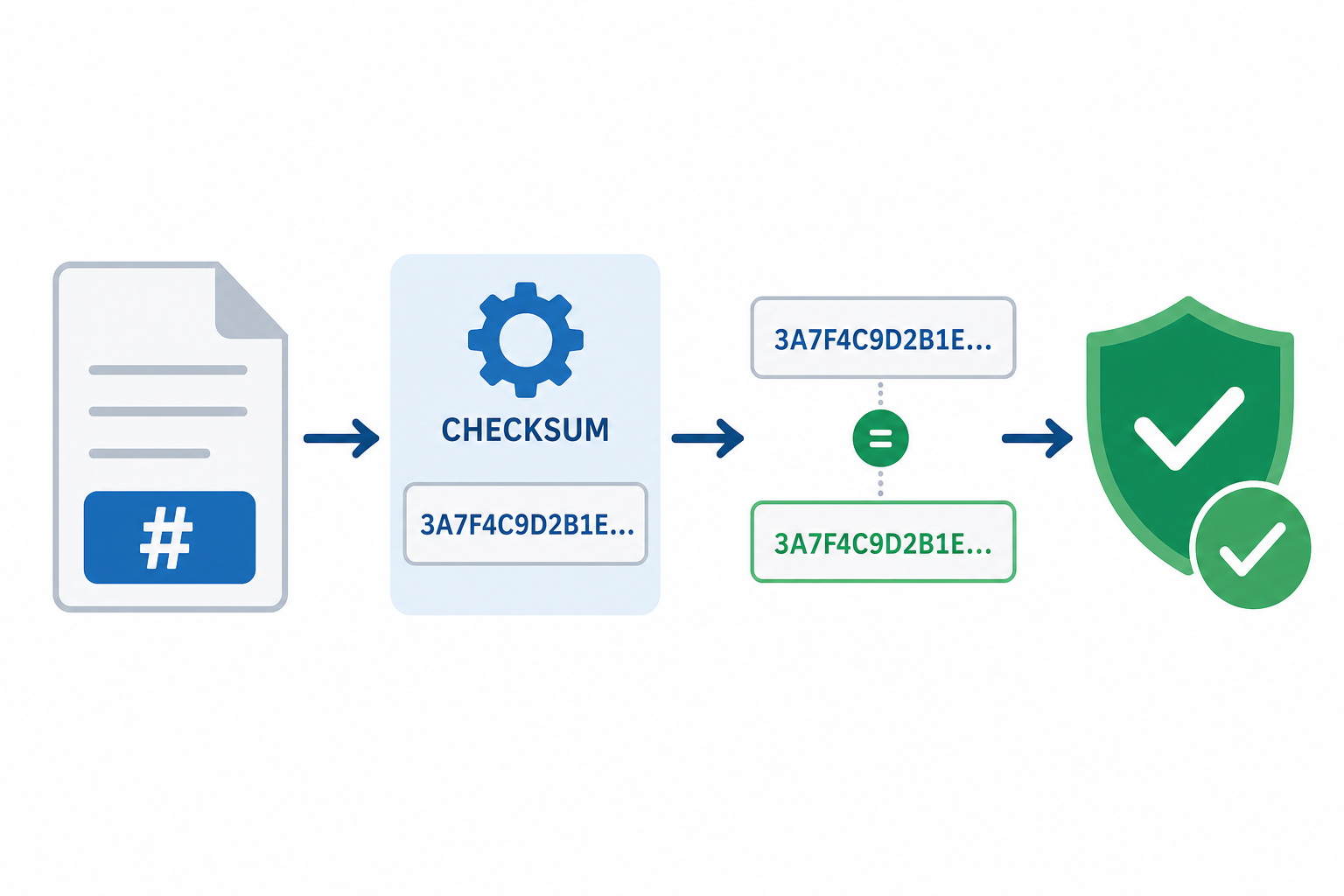
Checking a file’s SHA-256 checksum against the value published by Microsoft is the single most reliable way to confirm your download is complete and untampered before you use it. Here’s the general process:
- Note the official SHA-256 hash listed on Microsoft’s download page or documentation for your specific ISO.
- Open PowerShell and run
Get-FileHashfollowed by the path to your downloaded file. - Compare the output string character-by-character with the official hash.
- If they don’t match exactly, delete the file and re-download it — don’t attempt to use it anyway.
This single step takes under a minute and eliminates the guesswork that leads to failed installs later.
Common Signs of a Bad ISO
- Setup freezes at the same percentage every time you try to install
- The file size is noticeably smaller than expected for the edition and language
- Your USB creation tool reports a “write verification failed” error
- Windows Setup throws a generic error code with no clear cause
If you hit any of these, don’t troubleshoot the installer first — re-download the ISO and re-verify the checksum before trying anything else.
Step-by-Step: Creating Windows Installation Media with the Media Creation Tool
The fastest, lowest-risk way to build windows installation media is to let Microsoft’s own tool handle both the download and the USB write in one pass.
- Plug in a USB flash drive with at least 8 GB of free space — it will be fully erased.
- Download the Media Creation Tool from Microsoft’s official download page and run it.
- Accept the license terms, then choose “Create installation media for another PC.”
- Select your language, edition, and architecture, or leave the recommended options checked.
- Choose “USB flash drive” as the media type and select your drive.
- Let the tool download Windows and write it to the drive — this typically takes 15–40 minutes depending on your connection speed.
Once it finishes, the drive is bootable and ready to use for a clean install or repair.
Creating Windows Installation Media with Rufus or Other Third-Party Tools
If you already have a verified Windows ISO and want more control over the write process, a tool like Rufus lets you select partition scheme, target system type, and even bypass certain hardware checks during the write — something the official tool doesn’t offer. The trade-off is that you’re responsible for sourcing a clean ISO yourself; always download it directly from Microsoft rather than a third-party mirror, then checksum-verify it before pointing Rufus at the file.
After You Create Windows Installation Media: Installing and Activating Windows
Once your installation media is ready, boot from it by selecting the USB drive in your PC’s boot menu (usually F10, F11, F12, or Esc depending on the manufacturer), then follow the setup wizard through partitioning, installation, and initial configuration. You’ll be prompted for a product key during or shortly after setup — our activation instructions for Windows 11 Home cover exactly where that key goes and how to confirm activation succeeded.
FAQ
What is the difference between the Media Creation Tool and a Windows ISO file?
The Media Creation Tool is a program that downloads Windows and can write it to a USB drive automatically. A Windows ISO file is just the disk image itself — you still need a separate tool like Rufus to turn it into bootable windows installation media.
Is it safe to use third-party tools like Rufus to create Windows installation media?
Yes, as long as the ISO you feed into it came from an official Microsoft source. The writing tool itself isn’t usually the risk; an ISO downloaded from an unofficial mirror is.
Which Windows edition should I choose when creating installation media?
Choose Home for everyday personal use and Pro if you need BitLocker, Remote Desktop hosting, Hyper-V, or Group Policy management. Pick the edition before you build your media, since switching later generally means starting the process over.
How can I verify that my Windows ISO download isn’t corrupted?
Compare the SHA-256 checksum of your downloaded file against the official hash published by Microsoft using a tool like PowerShell’s Get-FileHash. If the values don’t match exactly, re-download the file rather than trying to use it.
Can I use Windows installation media without a product key?
You can start setup without entering a key and activate later from within Windows, but you’ll eventually need a genuine license key to remove watermarks and unlock full personalization options.
How much USB storage do I need for Windows installation media?
An 8 GB USB flash drive is the minimum Microsoft recommends, though a 16 GB or larger drive gives you more headroom if you later want to add driver packages or additional files.
Does creating installation media erase my USB drive?
Yes — both the Media Creation Tool and third-party tools like Rufus fully format the target drive, erasing any existing files. Back up anything important on that USB drive before you begin.
