
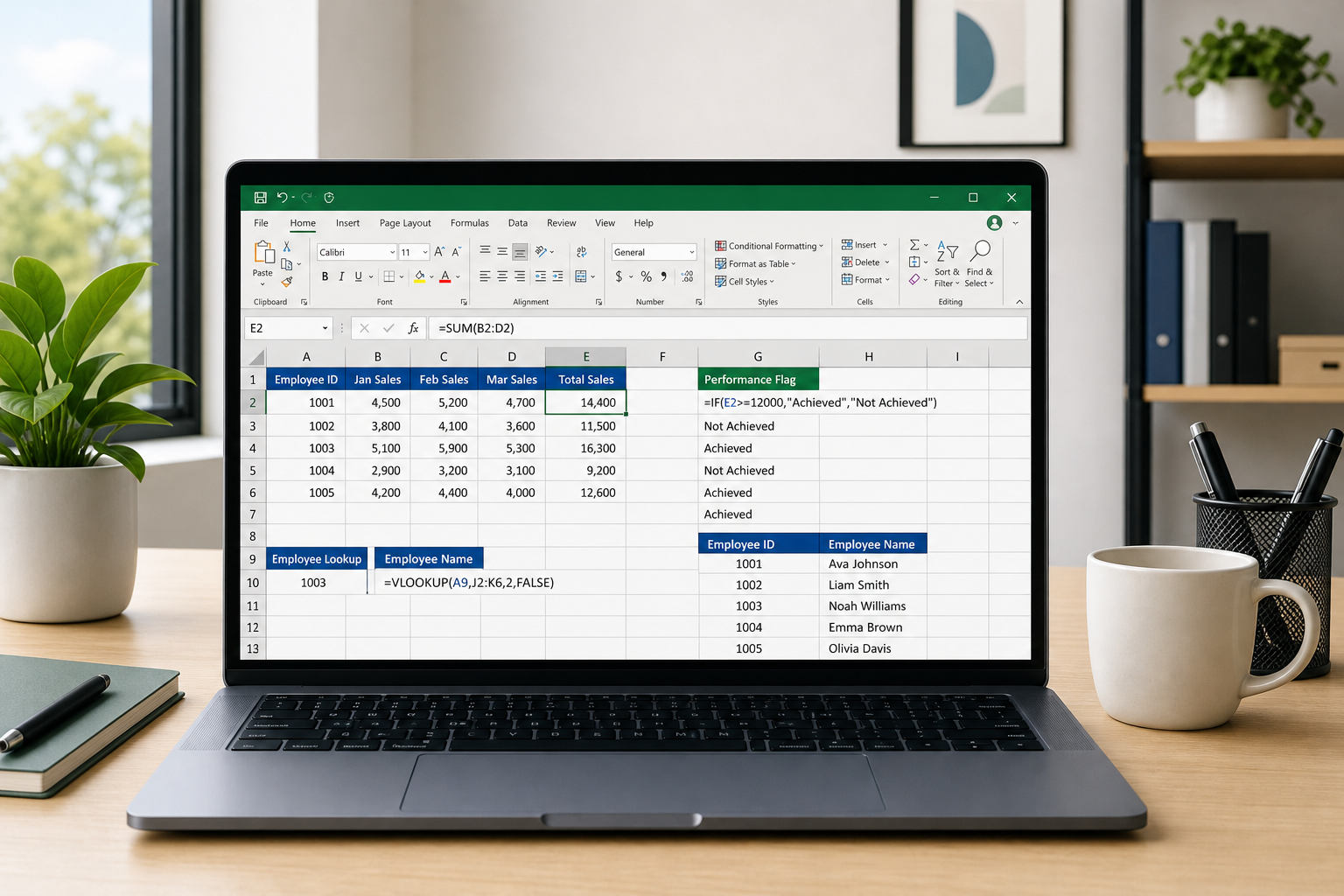
If you’re searching for excel formulas for beginners, the honest answer is you only need a handful to handle almost every task that lands on your desk: SUM, IF, and a basic VLOOKUP. These three formulas cover the vast majority of what office workers, students, and small business owners actually do in a spreadsheet — adding up numbers, making simple decisions, and pulling matching data from another table. Everything else is nice to have, not need to have.
This guide skips the power-user territory — no dynamic arrays, no nested array formulas, no XLOOKUP deep dives. It’s the no-fluff version: what each formula does, exactly how to type it, and the mistakes that trip up almost everyone the first time.
Why These Excel Formulas for Beginners Matter More Than the Fancy Ones
Most day-to-day spreadsheet work is repetitive arithmetic and simple lookups, not complex modeling. A sales tracker, a student grade sheet, an invoice log, or a small business expense list all rely on the same three or four operations over and over.
Learning Excel’s core formulas properly means you stop retyping numbers by hand, stop manually scanning columns to find a match, and stop making the small errors that come from doing math in your head. If you only remember one thing from this article, remember this: fluency with a few simple formulas beats a shallow familiarity with twenty complicated ones.
SUM: The First Excel Formula Every Beginner Should Learn
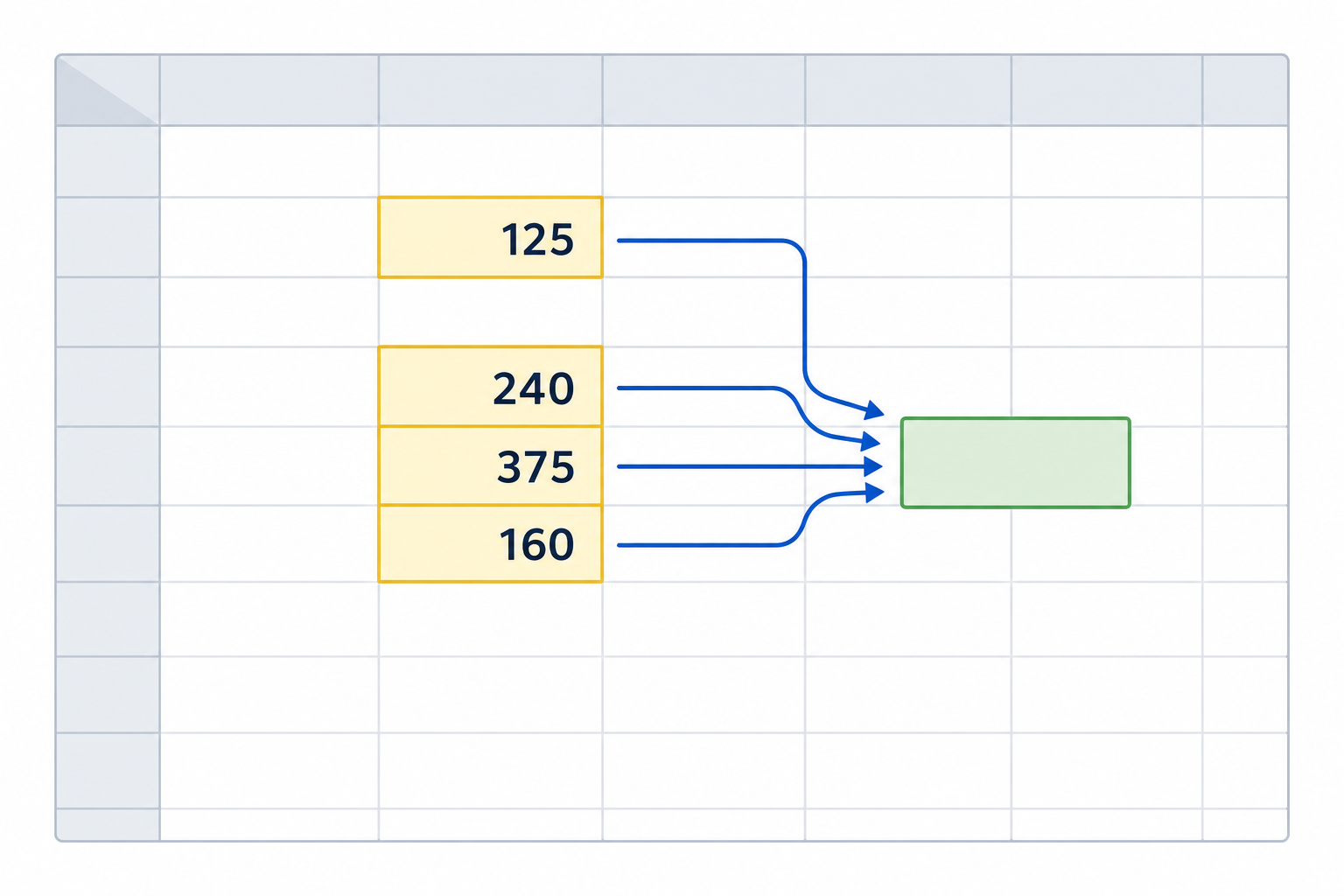
SUM adds up a range of numbers, and it’s the formula you’ll type more than any other. The syntax is simple:
-
=SUM(A1:A10)— adds every number from cell A1 through A10 -
=SUM(A1:A10, C1:C10)— adds two separate ranges at once -
=SUM(A1, A5, A9)— adds specific, non-adjacent cells
The most common beginner mistake is selecting the wrong range — forgetting a row at the bottom of a list, for example, so new entries don’t get counted. A quick habit that fixes this: select slightly beyond your current data when you first write the formula, so future rows fall inside the range automatically.
SUMIF: SUM With a Condition
Once plain SUM feels comfortable, SUMIF is the natural next step — it adds numbers only when they meet a condition, such as totaling sales for one region or expenses for one month. For example, =SUMIF(B2:B100, "Marketing", C2:C100) adds every value in column C where column B says “Marketing.” This single formula replaces a lot of manual filtering and retyping.
IF: Making Your Spreadsheet Make Decisions
The IF formula tells Excel to return one value when a condition is true and another when it’s false. It’s the closest thing to teaching a spreadsheet to think. The structure is:
=IF(condition, value_if_true, value_if_false)
A practical example: =IF(B2>=60, "Pass", "Fail") checks a score in cell B2 and labels it automatically. Small business owners use the same logic to flag overdue invoices, students use it to grade assignments, and office workers use it to tag records that need follow-up.
Nesting IF Statements (Without Overdoing It)
You can nest IF statements to handle more than two outcomes, like this: =IF(B2>=90, "A", IF(B2>=80, "B", "C")). This works fine for two or three conditions. Beyond that, nested IFs get hard to read and easy to break — that’s genuinely power-user territory, and most beginners are better off keeping it simple or asking a more experienced colleague for the next step.
VLOOKUP Basics: Finding Data Without Scrolling
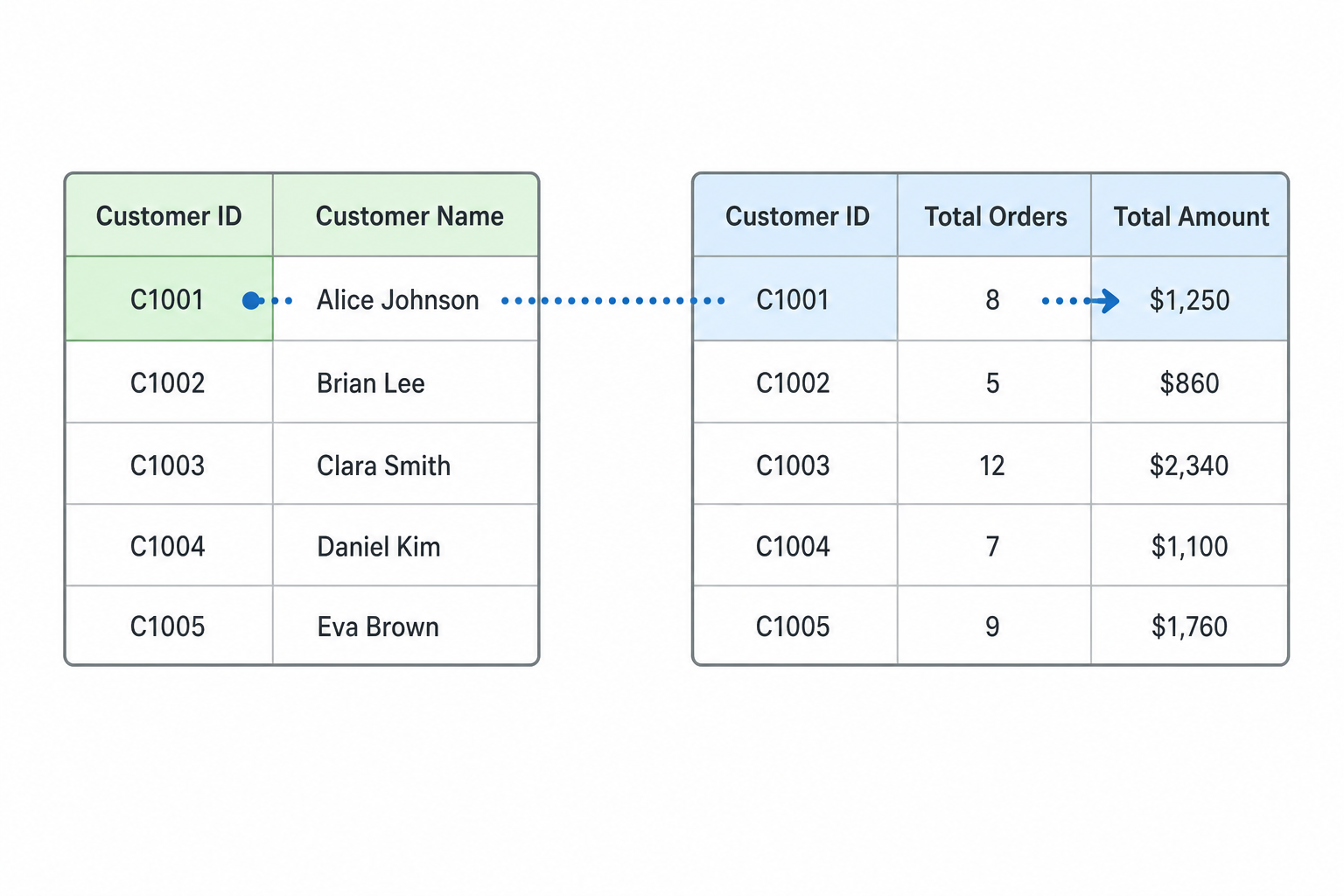
VLOOKUP searches a column for a value and returns matching data from another column in the same row — it’s the formula that replaces manually scrolling through a long list to find one piece of information. The basic structure is:
=VLOOKUP(lookup_value, table_array, col_index_num, [range_lookup])
-
lookup_value — what you’re searching for (an employee ID, a product code)
-
table_array — the full range containing your data, including the lookup column
-
col_index_num — which column in that range holds the answer you want, counted from the left
-
range_lookup — type FALSE for an exact match, which is what beginners should use almost every time
For example: =VLOOKUP(A2, D2:F500, 3, FALSE) looks for the value in A2 inside the first column of D2:F500, then returns the matching value from the third column of that range. According to Microsoft’s official VLOOKUP documentation, the lookup column must always be the leftmost column in your selected range — this single rule causes more beginner errors than anything else in the formula.
Common VLOOKUP Mistakes
-
Forgetting FALSE at the end, which lets Excel return an approximate (and often wrong) match
-
Putting the lookup column anywhere other than the leftmost column of the range
-
Not locking the table array with dollar signs (
$D$2:$F$500) before copying the formula down a column
Once these basics click, you’ll have covered the formula that most Excel beginners struggle with — and most office tasks never need anything more advanced than this.
Putting Excel Formulas for Beginners Together in One Sheet
In practice, these formulas rarely work alone. A simple expense tracker might use SUM to total monthly spending, SUMIF to break totals down by category, and VLOOKUP to pull a vendor name from a separate reference list based on an invoice number. A grading sheet might use IF to assign letter grades and SUM to calculate a final average. That overlap is exactly why these three formulas cover so much ground — they combine naturally for almost any everyday task.
A Simple Starting Workflow
-
Keep your raw data in one sheet or table, with one clear header row
-
Use SUM or SUMIF for any totals you need
-
Use IF for any status, label, or pass/fail logic
-
Use VLOOKUP to pull in details from a separate reference list instead of retyping them
This workflow is also the same logic behind Excel’s pivot tables, which automate a lot of the SUM and SUMIF work once your data is organized — worth exploring once these basics feel second nature.
When You’ve Outgrown the Basics
These three formulas carry most office work, but there are signs you’re ready for the next level: if your VLOOKUP formulas keep breaking when columns get reordered, or you’re nesting IF statements five levels deep, it’s time to look at XLOOKUP, INDEX/MATCH, and other more flexible functions designed to replace these exact pain points. That territory is covered in more depth elsewhere — for now, mastering SUM, IF, and VLOOKUP basics will handle the overwhelming majority of what crosses your desk.
If you’re working across a team or managing shared spreadsheets regularly, it’s also worth making sure you’re running a genuine, fully licensed copy of Excel — formula behavior, especially around functions like dynamic arrays, can differ between versions, and an unsupported or pirated copy risks compatibility issues and missing updates.
FAQ: Excel Formulas for Beginners
What is the easiest Excel formula to start with?
SUM is the easiest and most useful starting point. It only requires selecting a range of cells, and it’s the foundation for more advanced formulas like SUMIF and SUMIFS later on.
Do Excel Formulas for Beginners Require Memorizing Syntax?
No — Excel shows you the required arguments as you type a formula, and autocomplete suggests the structure. Memorizing the logic (what each formula does) matters far more than memorizing exact syntax.
What’s the difference between VLOOKUP and IF?
IF makes a decision based on a condition and returns one of two results. VLOOKUP searches for a value and retrieves related data from another column. They solve different problems and are often used together in the same sheet.
Why does my VLOOKUP return #N/A?
This almost always means Excel can’t find an exact match — often because of extra spaces, mismatched data types (text versus number), or because the lookup value isn’t actually present in the first column of your range.
Should beginners learn XLOOKUP instead of VLOOKUP?
VLOOKUP is still widely used in shared spreadsheets and older files, so it’s worth learning first. XLOOKUP is more flexible and fixes several VLOOKUP limitations, but it’s a logical next step rather than a starting point.
Can these formulas work in both older and newer versions of Excel?
Yes. SUM, IF, and VLOOKUP have worked the same way across Excel versions for decades, so they behave consistently whether you’re on an older standalone license or a current Microsoft 365 subscription.
