
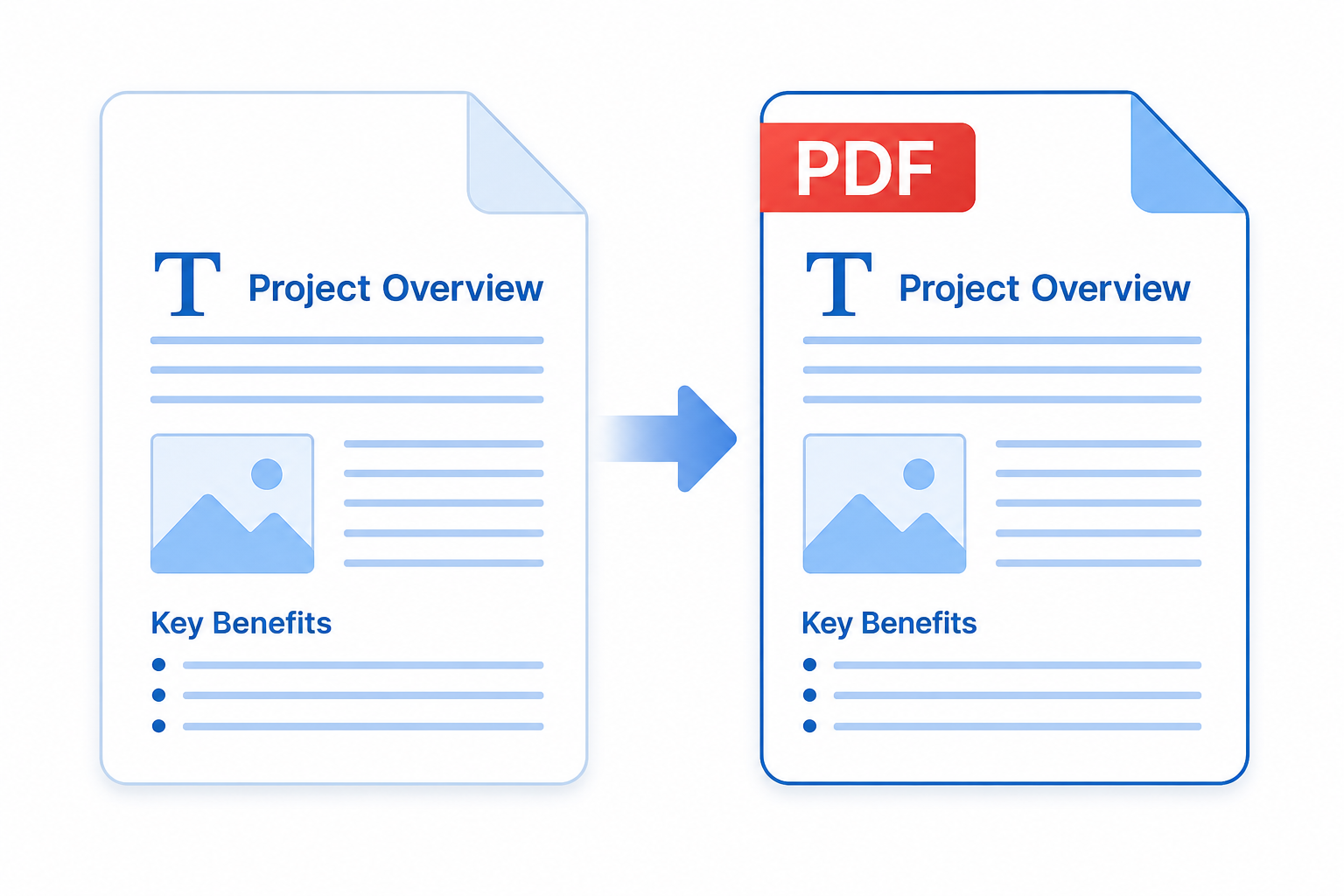
The fastest, safest way to handle word to pdf conversion is to use Microsoft Word’s built-in Export or Save As PDF feature rather than a third-party website — it keeps your fonts embedded, images untouched, and layout exactly as designed. Online converters work too, but they come with tradeoffs you should know before uploading a contract or a graded assignment.
Whether you’re a student submitting a thesis chapter or a small business owner sending a signed agreement, the goal is the same: the PDF has to look identical to the Word document on every device that opens it. Below is a practical comparison of every method, the formatting issues each one causes, and how to pick the right approach for your situation.
How Does Word to PDF Conversion Work Without Breaking Formatting?
Word to pdf conversion works by “printing” the document into a fixed-layout file format that embeds fonts, images, and spacing exactly as they appear on screen, instead of leaving them editable. When this process is done correctly, every font is embedded in the file itself, so the PDF displays the same way even on a computer that doesn’t have that font installed.
Problems happen when a tool skips font embedding, recompresses images too aggressively, or recalculates page breaks differently than Word does. That’s why the method you choose matters as much as the software you’re exporting from.
Built-In Word to PDF Conversion Methods in Microsoft Word
Microsoft Word has included a native PDF export option for a long time, and it remains the most reliable way to convert a document without altering its appearance. It works offline, requires no upload, and embeds fonts automatically by default.
Save As PDF on Windows
On Windows, open your document, go to File, then Export, and choose Create PDF/XPS Document. Word gives you an option to optimize for “Standard” (print quality) or “Minimum size” (smaller file, more image compression) — for contracts and assignments, Standard is the safer default since it preserves image sharpness.
Export to PDF on Mac
On a Mac, File > Save As, then choose PDF from the file format dropdown. Word for Mac uses the same embedding logic as Windows, so fonts and layout carry over correctly in almost all cases, including documents with headers, footnotes, and embedded tables.
Word to PDF Conversion in Word for the Web
If you’re working in a browser through Microsoft 365, File > Export > Download as PDF produces a clean export as well. This is useful for students working from a shared or school-managed computer that doesn’t have the desktop app installed, since it needs nothing beyond a browser.
Online Word to PDF Conversion Tools: Pros and Cons
Online word to pdf conversion tools are convenient when you don’t have Word installed at all, but they carry formatting and privacy risks that built-in export avoids entirely. They work by uploading your file to a remote server, converting it there, and sending back a PDF — which introduces a step you can’t fully control.
When to Use an Online Word to PDF Converter
These tools make sense for quick, low-stakes conversions: a flyer, a non-sensitive note, or a document with simple formatting and no embedded fonts. Many also offer the reverse conversion (PDF back to Word), batch processing, and compression settings that Word itself doesn’t include.
Security Risks of Online PDF Converters
The bigger concern for contracts and official paperwork is privacy: uploading a signed agreement, a resume with personal details, or a client proposal to an unfamiliar website means that data leaves your control. For anything containing financial terms, signatures, or client information, exporting locally through Word is the more defensible choice professionally.
Common Formatting Problems in Word to PDF Conversion
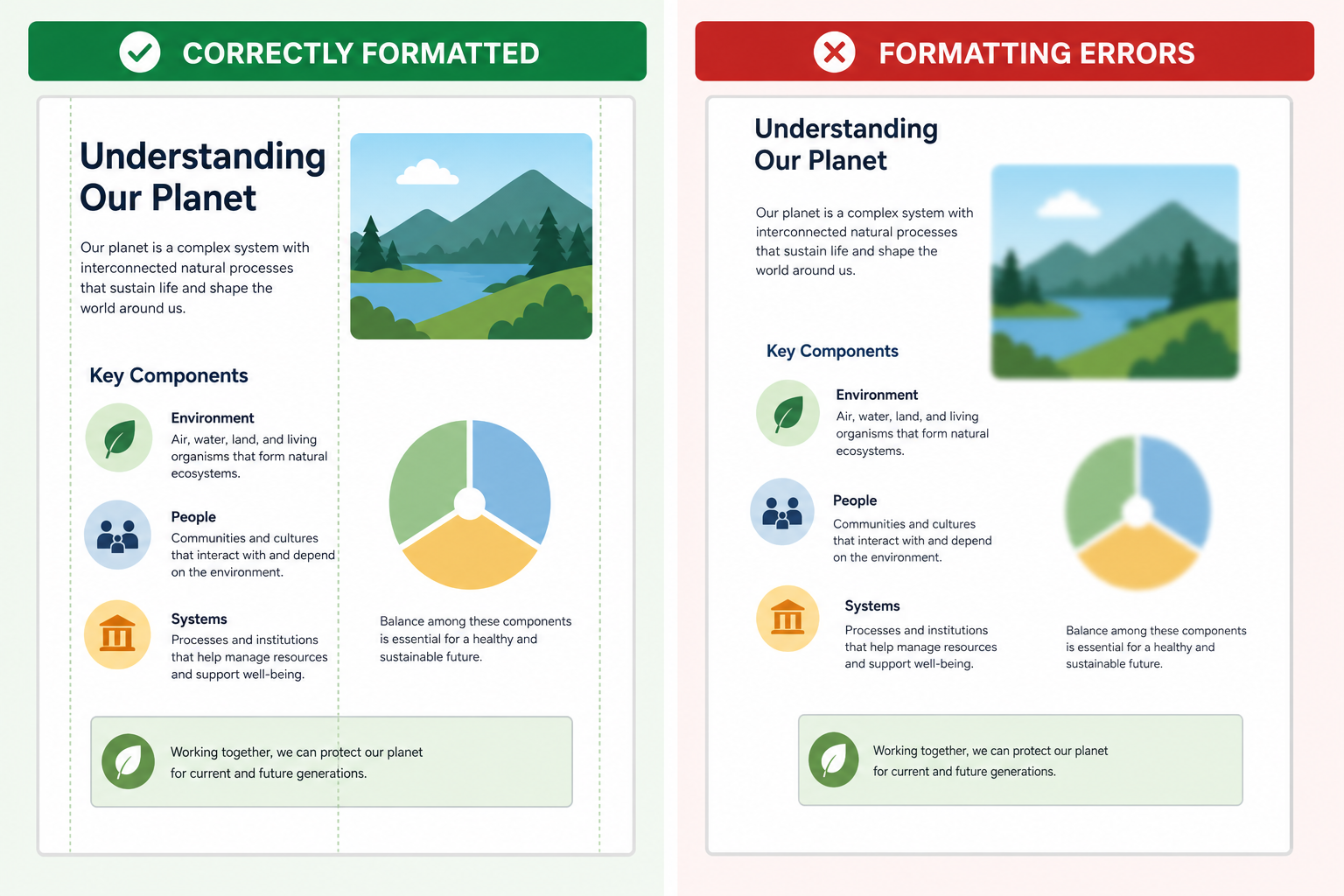
Most word to pdf conversion complaints trace back to one of three causes: unembedded fonts, image recompression, or layout recalculation from tables and columns. Knowing which one is biting you makes it much faster to fix.
Fonts Not Embedding Properly
If you used a font that isn’t licensed for embedding, or your converter doesn’t support embedding at all, the PDF substitutes a different font on other devices — shifting line breaks and page counts. Sticking to standard fonts (or confirming embedding is enabled in your export settings) avoids this almost entirely.
Images Shifting or Losing Quality
Some converters compress images by default to reduce file size, which can blur photos, logos, or diagrams. Choosing a “print quality” or “high resolution” export setting, rather than the default web-optimized one, prevents this.
Tables and Columns Breaking Layout
Complex tables, multi-column layouts, and text wrapped around images are the most likely elements to shift during conversion, because the converter has to recalculate exact pixel positions. Simplifying table borders and avoiding manual line breaks inside cells before exporting reduces the chance of this happening.
Word to PDF Conversion Tips for Students Submitting Assignments
For assignment submissions, the safest routine is to export directly from Word using File > Export, then open the finished PDF once before submitting to confirm page count, headers, and citations look right. Many learning management systems reject or flag documents with broken formatting, so this one extra check can save a resubmission.
- Use the desktop or web version of Word rather than a phone app for anything with footnotes, citations, or a bibliography.
- Check that page numbers and headers didn’t shift after conversion, especially in longer papers.
- Keep the original .docx file until your grade is confirmed, in case a formatting fix is needed.
- Avoid converting a document twice through different tools — each pass increases the chance of a layout shift.
Word to PDF Conversion Tips for Professionals Sending Contracts

For contracts and client-facing documents, word to pdf conversion should happen locally through Word, never through a public online tool, because confidentiality matters as much as formatting accuracy. A contract with shifted clause numbering or a missing signature line is more than a cosmetic issue — it can create ambiguity in a legal document.
- Lock the layout by converting to PDF only after the document is fully finalized and proofread.
- Use the “Standard” quality export so signatures, stamps, and logos stay sharp.
- Password-protect sensitive PDFs using Word’s built-in encryption option during export, when the content warrants it.
- Test the PDF on a second device before sending, to confirm fonts rendered as expected.
Choosing the Right Microsoft Office Version for PDF Conversion
Every modern version of Microsoft Word — 2016, 2019, 2021, and Microsoft 365 — includes the same reliable built-in PDF export, so you don’t need the newest subscription just to get clean conversions. If you’re setting up a computer for a student or a small office and want a one-time purchase instead of a recurring subscription, Office 2021 Home and Student covers Word, Excel, and PowerPoint with permanent licensing.
For professionals who also need Outlook and Access alongside advanced Word features, Office 2021 Professional Plus is a strong option, priced well below a year of subscription fees. If you’re still weighing a one-time purchase against an ongoing plan, this breakdown of the lifetime Microsoft Office license versus Microsoft 365 walks through the real cost difference over several years.
Microsoft’s own documentation on exporting a Word document as PDF confirms that the Export command is the recommended built-in path across Word versions, which is worth bookmarking if you ever need to double-check an export setting.
FAQ
Is word to pdf conversion free in Microsoft Word?
Yes — once you own a licensed copy of Word, exporting to PDF costs nothing extra and requires no additional software. The feature has been built into Word for well over a decade and works the same way across desktop, Mac, and the web version.
Does word to pdf conversion keep hyperlinks working?
Generally yes, when you export using File > Export rather than printing to PDF through a generic print driver. Hyperlinks, email addresses, and internal document links usually stay clickable in the resulting PDF, though it’s worth testing one link after conversion to confirm.
Why do my fonts look different after converting Word to PDF?
This almost always means the font wasn’t embedded during export, so the PDF viewer substituted a different one. Sticking to widely available fonts, or checking your export settings for a “embed fonts” option, resolves this in most cases.
Can I convert a Word document to PDF without Microsoft Word installed?
Yes, Word for the web (part of Microsoft 365) lets you upload or open a .docx file in a browser and export it to PDF with no desktop installation needed. Several reputable online converters also handle simple documents well, though they’re not ideal for sensitive files.
Why does my PDF have more pages than my Word document?
This usually happens when a font substitution or different margin handling shifts text slightly, pushing extra lines onto a new page. Checking the PDF against the original before submitting or sending it catches this before it becomes a problem.
Is it safe to use free online Word to PDF converters for contracts?
It’s not recommended for anything containing personal data, financial terms, or signatures, since the file is uploaded to a third-party server you don’t control. For contracts, exporting locally through Word keeps the document entirely on your own device.
