
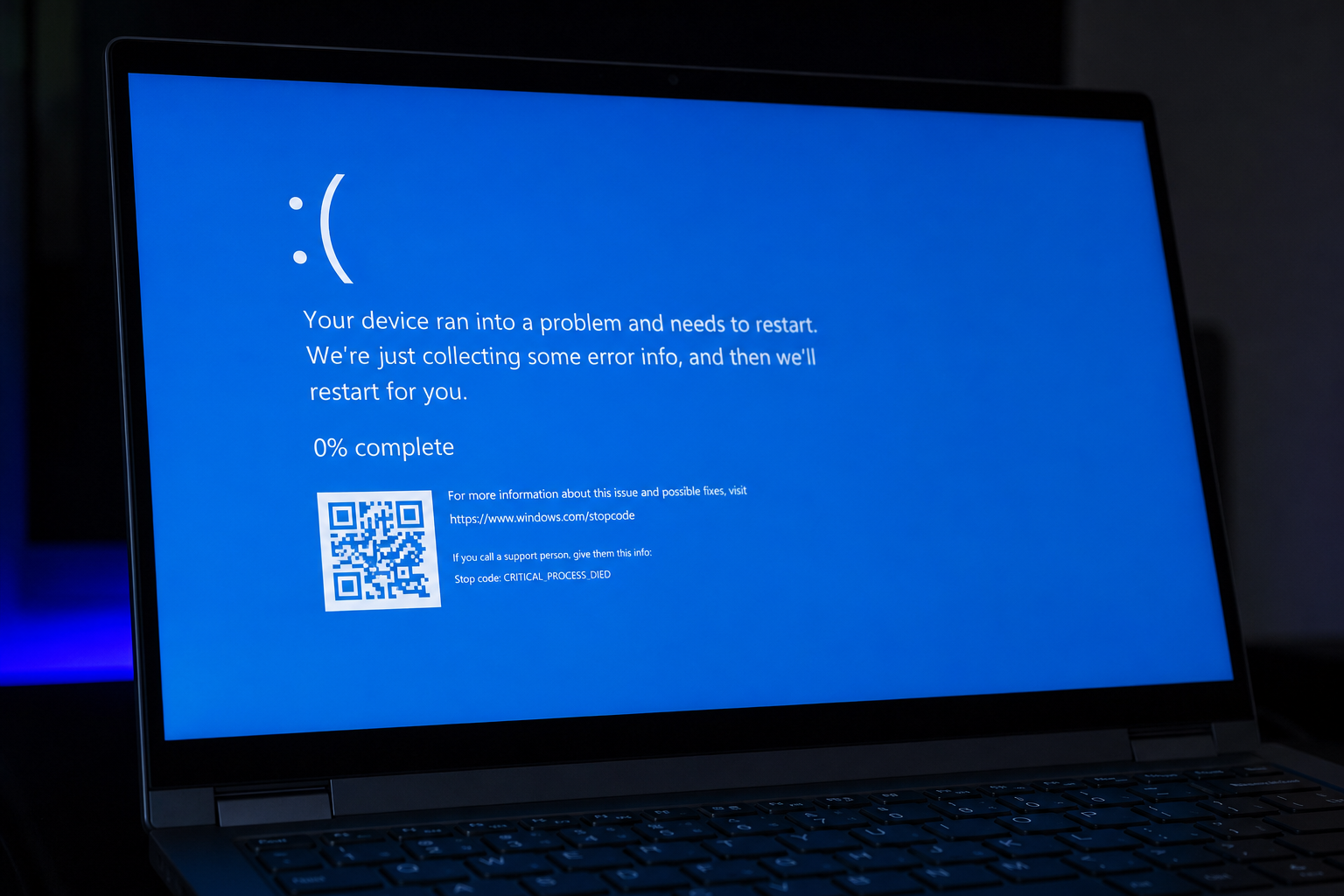
A blue screen QR code is Microsoft’s built-in way to turn a cryptic Windows crash into a specific, searchable answer instead of a guessing game. Point your phone’s camera at it and you’re taken straight to a support page matched to the exact error your PC just hit — no typing stop codes into search bars, no guessing which driver is to blame. Most people glance at the frowning face, reboot, and forget it ever happened. That’s the wrong move, because the code sitting on that screen is often the fastest route to actually fixing the problem.
What Is the Blue Screen QR Code?
The blue screen QR code is a small black-and-white square that appears on the Blue Screen of Death (BSOD) alongside the stop code and a short description of the error. Microsoft added it to Windows 10 back in 2016 so that anyone hitting a crash could scan it with a second device and land directly on a Microsoft support article relevant to that failure, rather than searching generic troubleshooting advice.
It doesn’t fix anything by itself — it’s a shortcut. Think of it as a signpost pointing you toward the right diagnostic page instead of a random one.
Why Microsoft Added a QR Code to the Blue Screen of Death
Microsoft added the QR code to cut down on the time users spend manually transcribing stop codes and searching for matches. Before the redesign, a crash just displayed a stop code like CRITICAL_PROCESS_DIED or IRQL_NOT_LESS_OR_EQUAL, and users had to search for that exact phrase and hope the results applied to their situation.
With the QR code, the link encodes the specific stop code, so the page you land on is already filtered to that error type. It’s a small change, but it meaningfully shortens the path from “my PC crashed” to “here’s what’s actually wrong.”
How to Scan the Blue Screen QR Code on Your PC
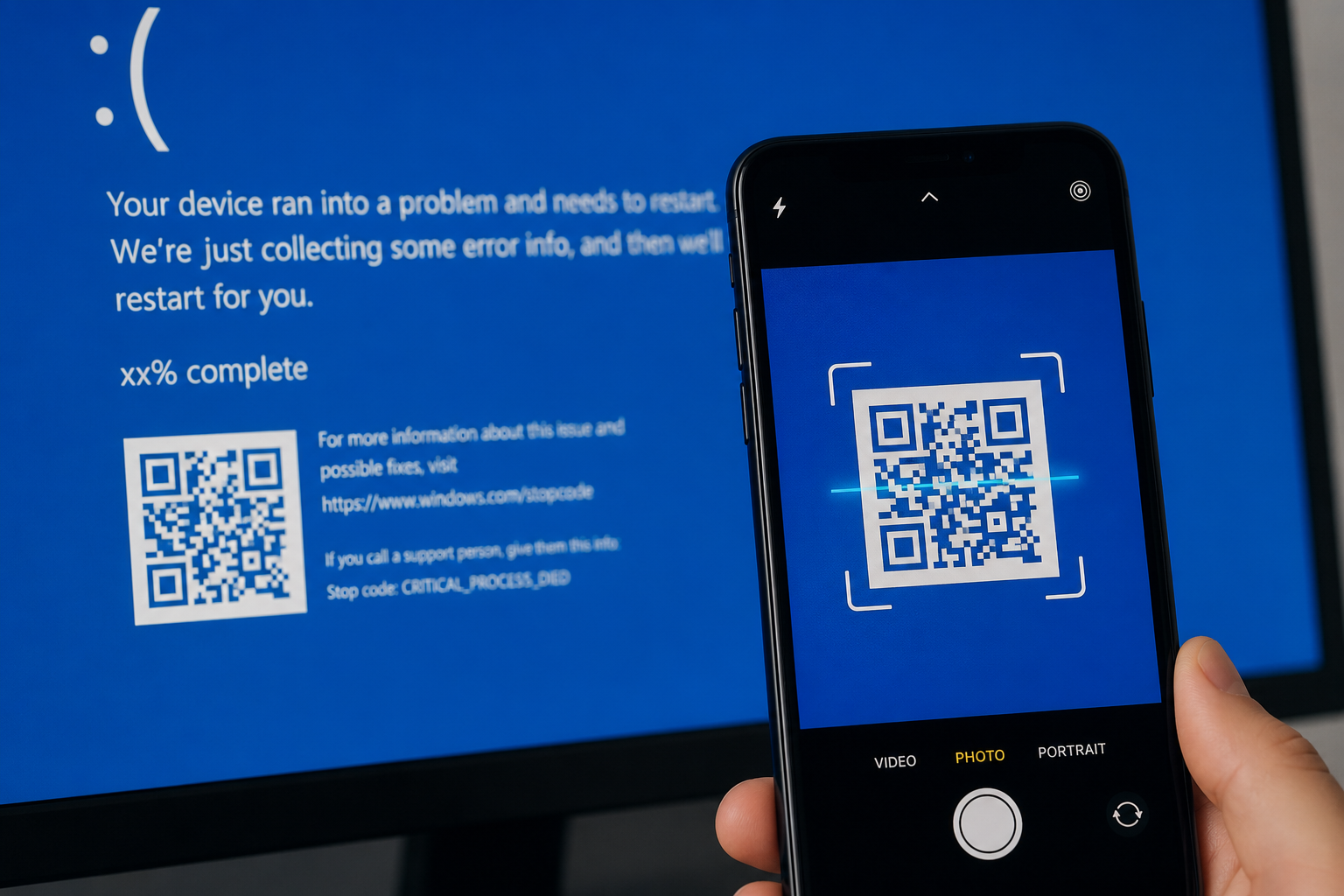
You scan the blue screen QR code the same way you’d scan any QR code — with a smartphone camera, since the crashed PC obviously can’t browse the page itself. Here’s the process:
- Grab a second device — phone or tablet — with a working camera and internet connection.
- Open the camera app (most modern phones detect QR codes automatically without a separate scanner app).
- Point it at the code on the blue screen until a notification or link preview appears.
- Tap through to the Microsoft support page it opens.
- Before the PC restarts and the screen disappears, note down the stop code text shown just above or below the QR code — you may need it if the page doesn’t load anything specific.
If your PC reboots automatically before you can scan it, you can disable automatic restart in Windows so the blue screen QR code stays visible long enough to capture.
What You’ll See After Scanning
The linked page usually explains, in plain language, what category of problem caused the stop code — a driver conflict, a memory error, a hardware fault, or a software crash. It often also links to Microsoft’s deeper troubleshooting documentation for that specific stop code, which is far more useful than a generic “how to fix blue screen” search result.
Decoding the Stop Code Next to the Blue Screen QR Code
The stop code printed beside the blue screen QR code is actually the most important piece of information on the whole screen — it’s the exact name Windows gives the error internally, and it’s what lets you (or any technician) pinpoint the cause.
Common Stop Codes and What They Mean
- DRIVER_IRQL_NOT_LESS_OR_EQUAL — usually a faulty or outdated driver accessing memory it shouldn’t.
- CRITICAL_PROCESS_DIED — a core Windows process stopped unexpectedly, often tied to corrupted system files.
- PAGE_FAULT_IN_NONPAGED_AREA — commonly linked to failing RAM or a storage drive issue.
- KERNEL_SECURITY_CHECK_FAILURE — can point to corrupted drivers or, less often, malware tampering.
- MEMORY_MANAGEMENT — frequently a RAM problem, but can also stem from bad drivers.
Searching the exact stop code — the same text the blue screen QR code links to — is far more productive than searching “blue screen of death” in general, because it filters out irrelevant results.
From QR Code to Real Diagnosis: Reading the Crash Dump
Scanning the QR code gives you context, but the crash dump file gives you proof. Every time Windows crashes, it writes a memory dump to disk recording exactly what the system was doing at the moment of failure, including which driver or process triggered it.
Where Windows Stores the Crash Dump File
By default, Windows saves a minidump to C:\Windows\Minidump. You can open these with free tools like WinDbg or BlueScreenView to see the exact driver file named in the crash — often the single fastest way to identify a bad graphics driver, outdated chipset driver, or failing peripheral software. Combined with the stop code from the blue screen QR code, the dump file turns a one-line error into a full diagnosis.
Is Microsoft Replacing the Blue Screen QR Code?

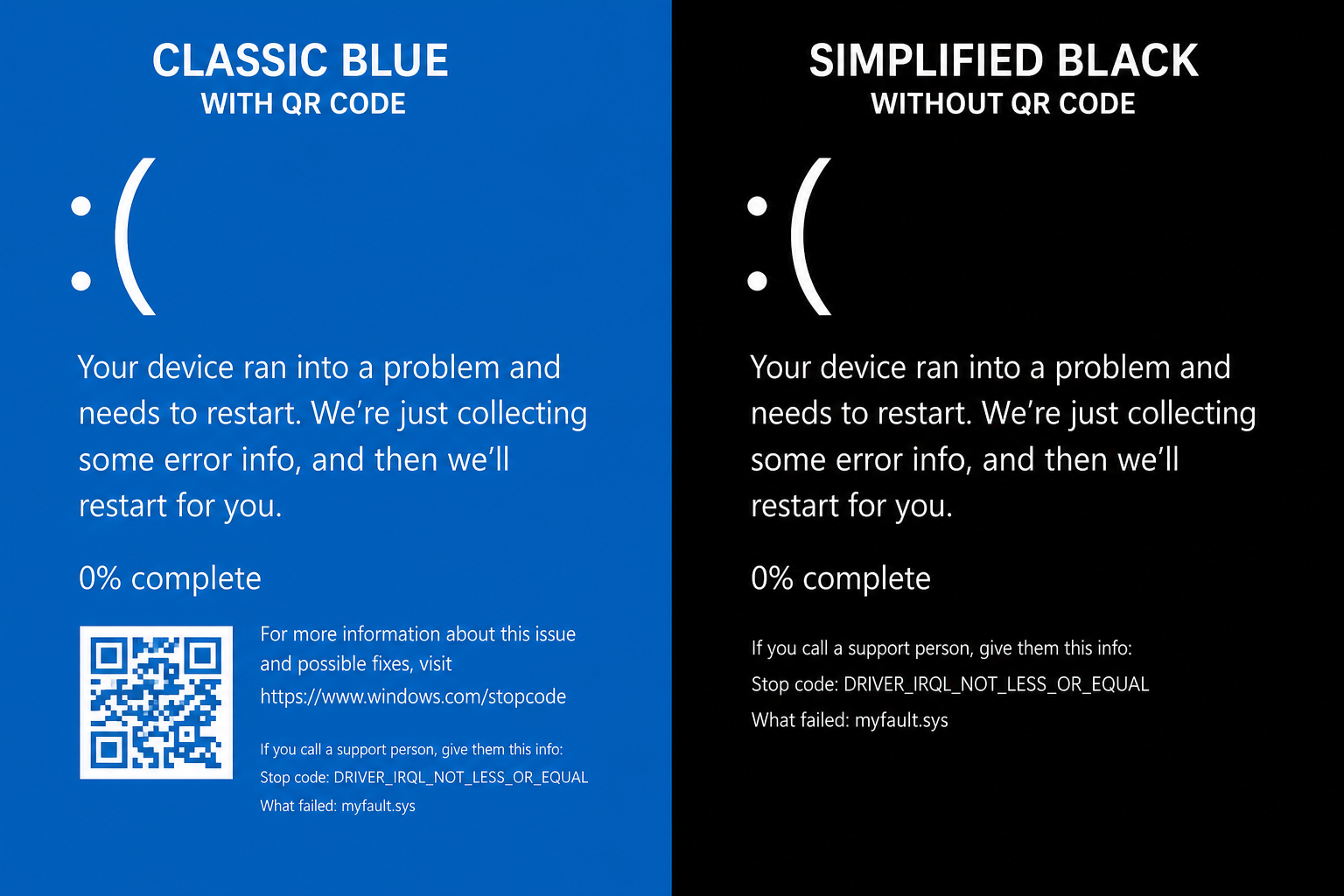
Microsoft has been rolling out a redesigned crash screen on Windows 11 that drops the familiar blue background, the frowning face, and the QR code in favor of a simplified black screen that shows the stop code and the responsible driver directly on-screen. The idea is to get technical users to the root cause even faster, without needing a second device at all.
That rollout has not reached every Windows 11 PC, and it does not apply to Windows 10 at all — which reached the end of free security updates on October 14, 2025 but is still running on a large share of PCs worldwide. So if your machine shows a blue screen QR code instead of the newer black screen, that’s expected, not a bug. Both versions are trying to solve the same problem: getting you a real answer instead of a vague crash message.
What to Do After You’ve Diagnosed the Crash
Once the blue screen QR code or the stop code points you toward a cause, act on it rather than just restarting and hoping it doesn’t happen again.
Updating Drivers and Windows
Most crashes trace back to an outdated or buggy driver. Check Windows Update and the manufacturer’s site (graphics card, chipset, network adapter) for newer driver versions. If the crash started right after a Windows update, you can boot into Safe Mode to roll back the driver or uninstall the update safely. Microsoft’s own quality reporting shows how many of these fixes land through ordinary cumulative updates rather than major releases — worth keeping an eye on if crashes have been frequent.
When It’s Time to Reinstall Windows
If the crash dump keeps pointing to corrupted system files rather than a specific driver, a clean reinstall is often faster than chasing individual fixes. That’s also a good moment to confirm you’re running a genuine, properly licensed copy — a genuine Windows 11 Home license ensures you keep receiving the security and quality updates that actually reduce how often you see a blue screen QR code in the first place.
For recurring crashes, it also helps to review Microsoft’s own stop code troubleshooting documentation, which covers the diagnostic steps for most common crash categories in more depth than any single support article the QR code links to.
FAQ
What does the blue screen QR code actually link to?
It links to a Microsoft support page tied to the specific stop code your PC generated. The page explains, in general terms, what category of failure occurred and sometimes links to deeper troubleshooting resources for that exact error.
Can I use the blue screen QR code without a second device?
Not directly — you need a phone or tablet to scan it since the crashed PC can’t browse the page itself. If you don’t have a second device handy, simply note the stop code text shown on screen and search for it manually once your PC restarts.
Why do I still see a blue screen QR code on Windows 10 but not Windows 11?
Windows 10 never received the newer black crash screen redesign, so its blue screen QR code remains unchanged. Windows 11 has been gradually shifting to a simplified black screen without a QR code, but the rollout hasn’t reached every device.
Does scanning the QR code fix the crash automatically?
No. Scanning only takes you to information about the likely cause — you still need to update drivers, roll back a recent change, or run further diagnostics yourself based on what the page and the crash dump reveal.
What if there’s no QR code on my blue screen?
Some crash screens, especially the newer black-screen design, skip the QR code and show the stop code and faulty driver directly. In that case, search the stop code text manually or check the crash dump file for the same information.
