

Windows typing data collection is switched on by default on every fresh install of Windows 10 and Windows 11 — meaning Microsoft may be logging what you type, right now, to improve its AI and language models. This guide shows you every relevant setting, what it actually controls, and exactly how to turn each one off in under five minutes.
What Data Does Windows Actually Collect When You Type?
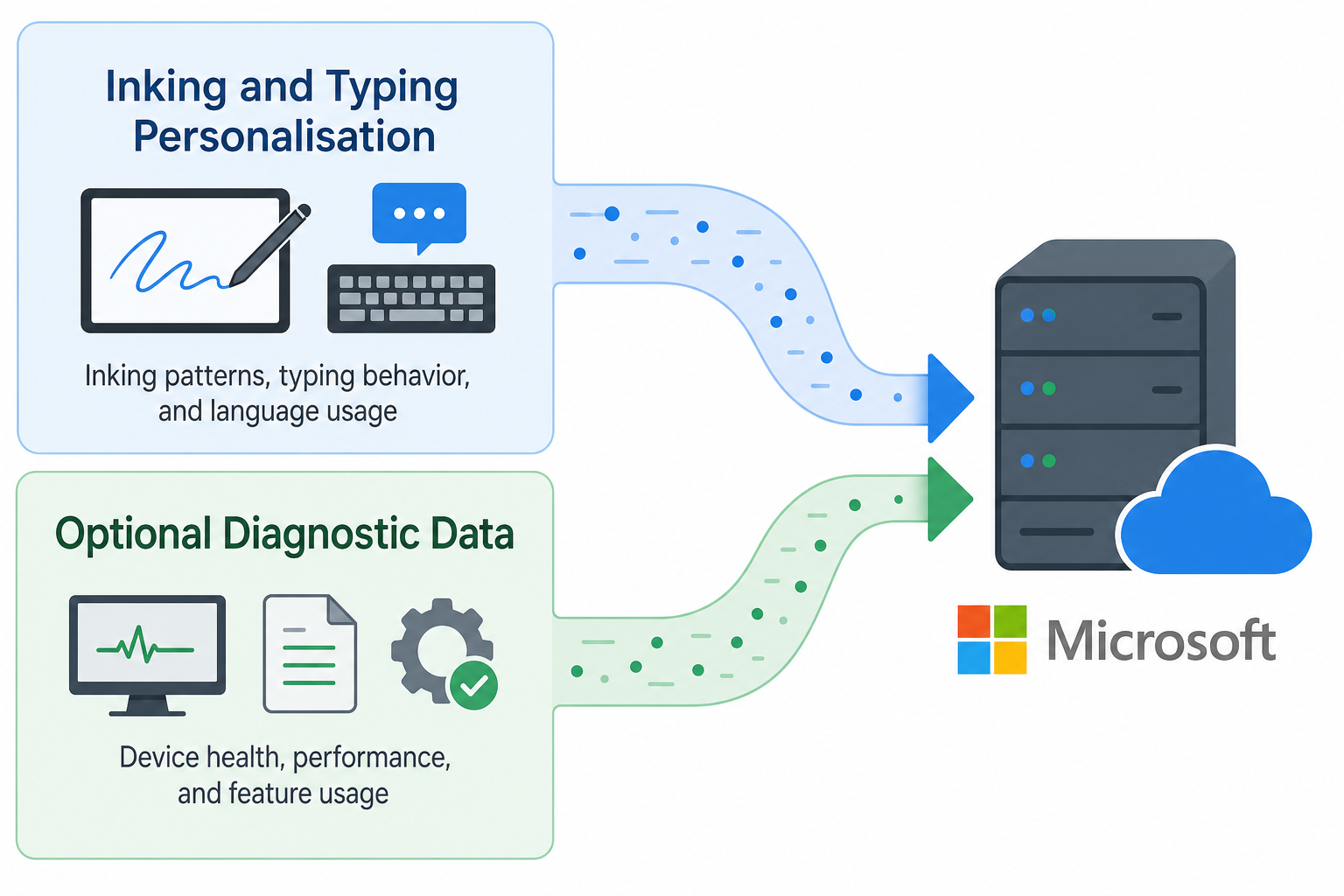
Before diving into the fix, it helps to understand what you are actually switching off. Microsoft splits its data gathering into two main streams that affect typists and handwriting users.
- Inking & Typing Personalisation — Builds a local personalised dictionary of the words and phrases you use. This data is also sent to Microsoft’s servers to improve autocorrect, word suggestions, and handwriting recognition across the platform.
- Optional Diagnostic Data (Inking & Typing) — Described by Microsoft itself as “anonymised Inking, Typing, and Speech Utterance data” collected to improve natural language processing and AI features. It sits inside the broader Diagnostics & Feedback section and is labelled “optional,” yet it is turned on by default for most users.
According to Microsoft’s own optional diagnostic data documentation on Learn.microsoft.com, this anonymised typing data is used specifically to improve language recognition across Windows 10 and Windows 11. Whether you consider that a fair trade is up to you — but you absolutely have the right to opt out.
Setting 1 — Disable Inking & Typing Personalisation
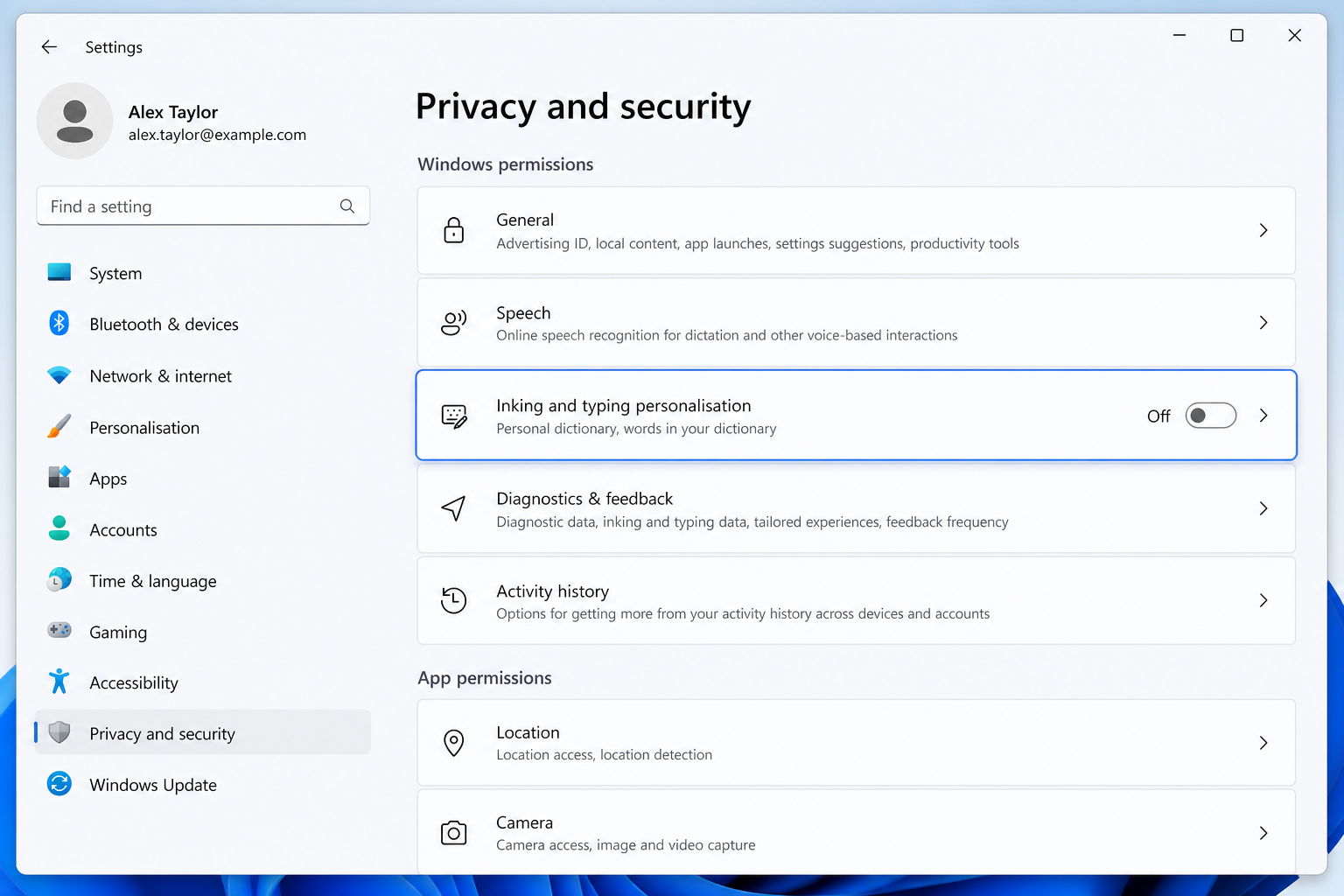
This is the primary toggle for Windows typing data collection and the one most users miss because it is buried inside the Privacy section rather than the more obvious Diagnostics menu.
How to Disable Typing Data on Windows 11
- Press Win + I to open Settings.
- Click Privacy & security in the left panel.
- Under Windows permissions, click Inking & typing personalisation.
- Toggle Personal inking and typing dictionary to Off.
How to Disable Typing Data on Windows 10
- Press Win + I to open Settings.
- Go to Privacy > General.
- Turn off “Send Microsoft info about how I write to help us improve typing and writing in the future.”
Turning this off stops Windows from sending your personalised word list to Microsoft’s servers and clears the local contact and calendar data the personalisation engine can access.
Setting 2 — Reduce Windows Telemetry Settings to Required Only
Even after disabling Inking & Typing Personalisation, Windows telemetry settings may still transmit typing-related diagnostic signals as part of broader optional data. Dropping the level to Required limits what leaves your machine considerably.
Steps for Windows 11
- Open Settings (Win + I).
- Go to Privacy & security > Diagnostics & feedback.
- Under Diagnostic data, select Send required diagnostic data (not Optional).
- Also disable Tailored experiences and View diagnostic data (the latter only lets Microsoft show you data — turn it off too).
Steps for Windows 10
- Open Settings > Privacy > Diagnostics & feedback.
- Under Diagnostic data, choose Required diagnostic data.
- Scroll down and toggle off Improve inking and typing if it appears (this toggle was removed in some later builds but appears on older update branches).
Note: Windows Home editions cannot reduce telemetry to zero — “Required” is the lowest available level. Windows 11 Pro and Enterprise editions can use Group Policy or the Registry to enforce a Security-level diagnostic setting, which is effectively zero telemetry beyond basic connectivity checks.
Setting 3 — Turn Off Speech Recognition Data
Keystroke logging Windows articles often overlook voice input, but speech recognition feeds the same language-model pipeline as typing data. If you use dictation, Cortana, or voice access features, disable this too.
- Go to Settings > Privacy & security > Speech (Windows 11) or Settings > Privacy > Speech (Windows 10).
- Toggle Online speech recognition to Off.
This prevents Windows from sending voice samples to Microsoft’s speech processing servers — a separate data stream but closely linked to the same AI improvement programmes as typing data.
Setting 4 — Block Windows Typing Data Collection via Registry (Pro and Enterprise)
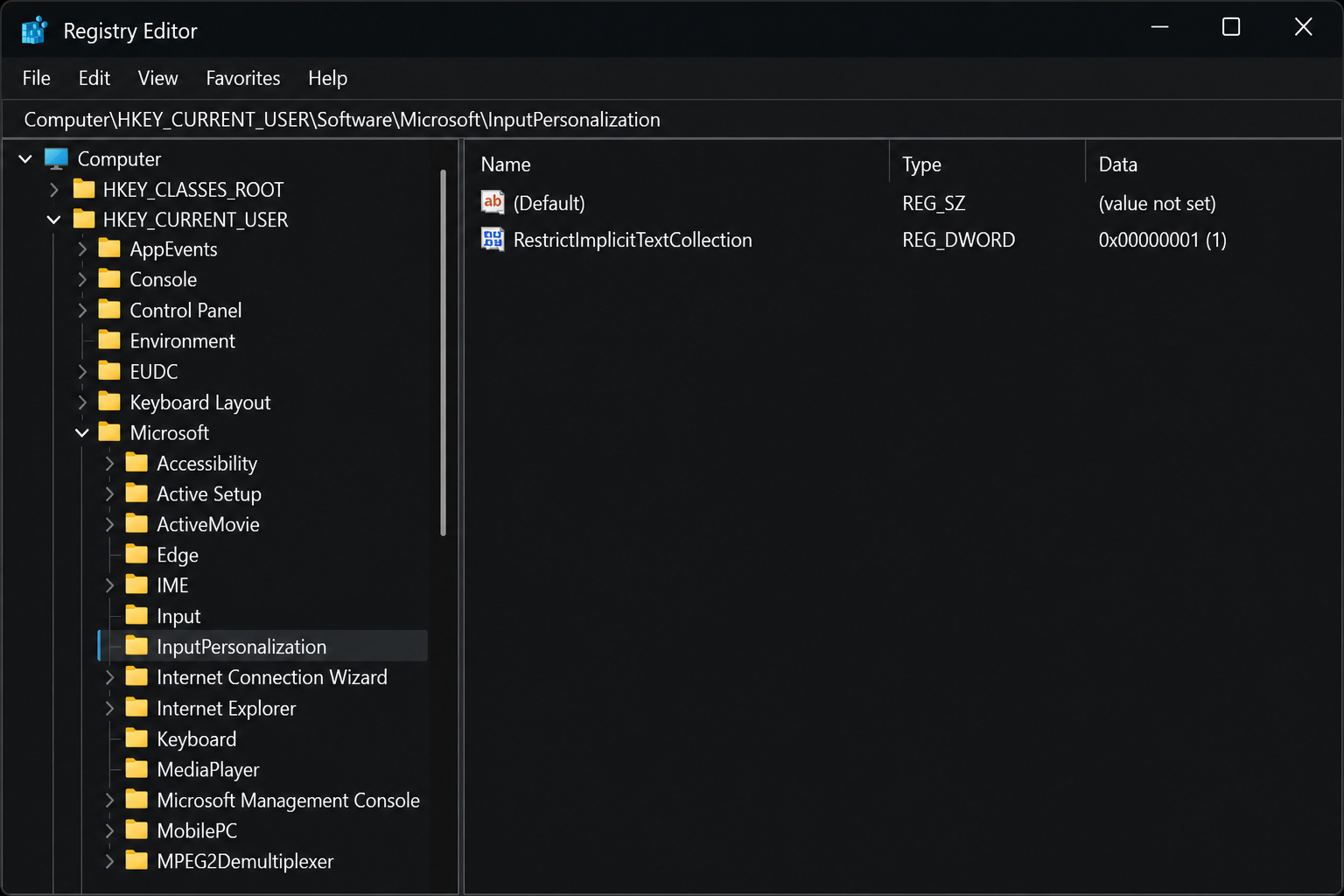
For IT administrators or privacy-conscious users on Windows 11 Pro, the Getting to Know You component — the mechanism that powers inking and typing personalisation at a system level — can be fully disabled via the Registry Editor. This is the most thorough way to stop Windows typing data collection at the source.
- Press Win + R, type
regedit, and press Enter. - Navigate to:
HKEY_LOCAL_MACHINE\SOFTWARE\Policies\Microsoft\InputPersonalization(create the key if it does not exist). - Create a new DWORD (32-bit) Value named
RestrictImplicitInkCollectionand set its value to 1. - Create a second DWORD named
RestrictImplicitTextCollectionand also set its value to 1. - Restart your PC.
These registry values mirror the Group Policy setting Computer Configuration > Administrative Templates > Control Panel > Regional and Language Options > Handwriting personalisation > Turn off automatic learning. Either method works; the Registry approach is faster for individual machines.
What Each Disable Typing Data Setting Actually Controls
Here is a plain-English summary of what each toggle does — because Microsoft’s own labels are not always transparent.
- Inking & Typing Personalisation (Off) — Stops the personal word dictionary from syncing to Microsoft. Also revokes access to your contacts and calendar for autocomplete suggestions.
- Required Diagnostic Data only — Limits reporting to basic device health and crash data. Eliminates the “Anonymised Inking, Typing, and Speech Utterance” optional diagnostic category entirely.
- Tailored Experiences (Off) — Stops Microsoft from using your diagnostic data to serve personalised tips, ads, and recommendations inside Windows.
- Online Speech Recognition (Off) — Routes voice input through on-device processing only; nothing sent to Microsoft’s speech servers.
- Registry / Group Policy block — Enforces the above at an OS policy level, preventing future Windows updates or apps from silently re-enabling implicit input collection.
Does Disabling Windows Telemetry Settings Break Anything?
This is the question most guides skip. The honest answer: for the vast majority of users, no. The features that depend on these settings — cloud-based autocorrect improvements, Cortana personalisation, and AI-suggested text completions — may become slightly less tailored over time, because the model behind them relies partly on aggregated user data. However, local autocorrect and spell-check continue to function fully because those are on-device, dictionary-based features that do not need a Microsoft server connection.
Power users running Windows 11 Pro on business machines should be aware that some enterprise compliance tools and Endpoint Analytics in Microsoft Intune do rely on a minimum telemetry level. Check with your IT department before dropping below Optional in a managed environment.
Should You Upgrade to Windows 11 Pro for Better Privacy Control?
Windows 11 Home gives you the Settings-level toggles covered above, which is enough for most people. But if you want to enforce disable typing data policies across multiple PCs, use Group Policy to lock telemetry at Security level, or manage input collection centrally, Windows 11 Pro is the better choice — and it does not cost as much as most people think.
At Top Key Shop you can pick up a genuine Windows 11 Home licence key for as little as €14.70, or step up to a Windows 11 Pro licence if you need the additional Group Policy and telemetry controls that Home simply does not offer. All keys are genuine, delivered to your inbox within minutes, and backed by a money-back guarantee.
Quick Privacy Checklist: Stop Windows Typing Data Collection
- ☑ Turn off Inking & Typing Personalisation in Privacy & security settings
- ☑ Set Diagnostic data to Required only (not Optional)
- ☑ Disable Tailored experiences
- ☑ Turn off Online Speech Recognition
- ☑ (Pro/Enterprise) Add Registry keys to block implicit input collection
- ☑ Recheck settings after major Windows feature updates — Microsoft occasionally resets some privacy toggles after a large update
Frequently Asked Questions
Is Windows keystroke logging the same as a keylogger virus?
No. A malicious keylogger is malware that secretly records everything you type and sends it to a third-party attacker. Windows’ built-in typing data collection is an opt-out telemetry feature disclosed (albeit quietly) in Microsoft’s privacy documentation. It is designed for AI and language model improvement, not credential theft. That said, the principle of minimising data sent off-device is sound regardless of the sender’s intent — and turning it off is straightforward.
Does disabling typing data break autocorrect?
No. On-device spell-check and autocorrect use a local dictionary and are not affected by disabling the cloud-based typing personalisation toggle. You will lose cloud-synced custom word suggestions over time, but standard dictionary-based corrections continue working normally.
Will Windows re-enable these settings after an update?
It can happen after major Windows feature updates (like an annual version upgrade). Microsoft has reset certain privacy toggles — particularly Optional Diagnostic Data — after large updates in the past. The safest approach is to use the Registry or Group Policy method (Windows 11 Pro), which persists across updates, and to review your settings after any significant Windows update.
Can I disable Windows telemetry settings completely on Home edition?
Not fully. Windows 10 and 11 Home editions cap the minimum at Required diagnostic data — a baseline Microsoft insists on for all consumer editions. This still covers typing-related optional data if you switch to Required, but it cannot be taken to zero. Enterprise and Education editions have a Security level that allows near-complete telemetry suppression.
Does this affect Copilot or AI features in Windows 11?
Partially. Windows Copilot and AI-powered suggestion features may become less personalised because they partly rely on the data streams you are disabling. Core Copilot functionality — including querying the AI model and generating responses — is processed server-side and is not disabled by these toggles. You are simply stopping your local typing behaviour from being fed back into Microsoft’s training pipeline.
