

Monitor adware on Windows is no longer a hypothetical threat — it’s actively happening right now. Popular displays from LG and Alienware have been caught leveraging Windows Update and the Microsoft Store to silently push OEM apps, adware bundles, and McAfee promotional pop-ups onto users’ PCs without a single click of consent. If you’ve recently plugged in a new monitor and started seeing unexpected software or intrusive advertisements, your display may be the culprit.
How Monitors Are Installing Auto-Install Adware Without Your Permission
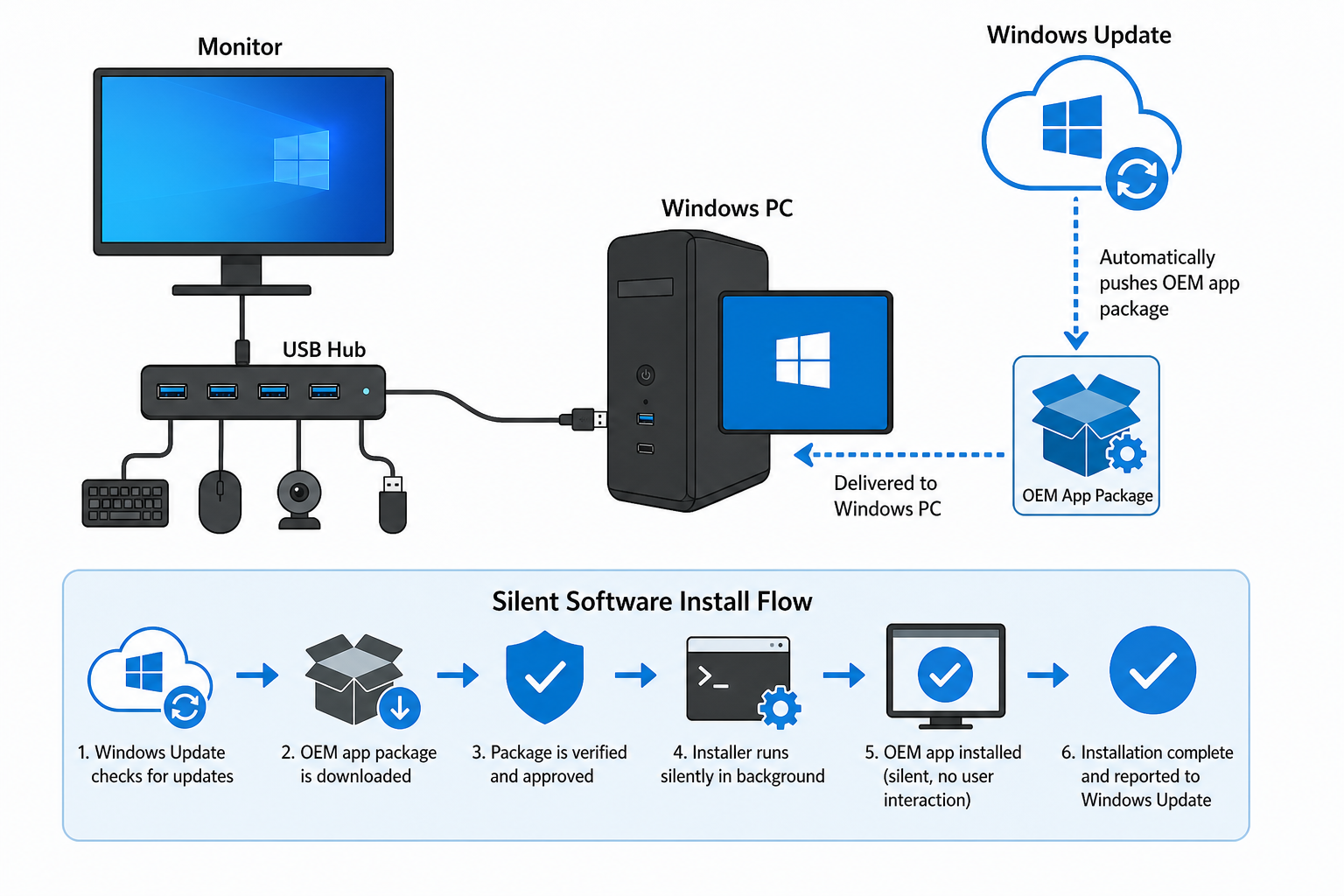
The mechanism behind this silent software install is surprisingly straightforward — and that’s exactly what makes it so concerning. When you connect a modern LG or Alienware monitor to a Windows PC (especially via the monitor’s built-in USB hub), Windows automatically queries its hardware database and the Microsoft Store for associated device drivers and companion apps. Manufacturers have discovered they can bundle OEM software — including adware — into these driver packages, and Windows will install them automatically as part of its normal plug-and-play routine.
In the LG case, users reported that the LG Monitor App Installer appeared on their systems after a Windows Update cycle, without ever visiting LG’s website or agreeing to any installation. Once installed, the app silently triggered McAfee Security promotional pop-ups — classic adware behaviour dressed up in legitimate-looking packaging. Alienware monitors were found to auto-install drivers through Windows Update when users connected the display’s built-in USB hub, with additional OEM companion software arriving alongside.
According to reporting by TechSpot and corroborated by PC Gamer and Tom’s Hardware, this behaviour exploits a legitimate Windows feature — automatic device app installation via the Microsoft Store — in a way that bypasses the consent most users expect when software appears on their machine.
Why This Monitor Bloatware Issue Is More Serious Than It Looks
Monitor bloatware sounds minor — an annoying pop-up here, an extra icon in the system tray there. But the implications run deeper than aesthetics.
- No consent obtained: Software installs without the user ever agreeing to any EULA or download prompt.
- Adware payloads: The McAfee pop-ups triggered by the LG app are classic adware — designed to generate revenue by pressuring users into purchasing security software they may not need.
- Difficult to remove: Some users reported that the LG Monitor App could not be cleanly uninstalled through the standard Add/Remove Programs route, requiring Group Policy changes or disabling the Microsoft Store entirely.
- Broad attack surface: Any PC running Windows 10 or Windows 11 with automatic hardware app installation enabled is potentially vulnerable whenever a new peripheral is connected.
- Trust erosion: When a premium €800+ Alienware gaming monitor or a professional LG display installs adware without asking, it fundamentally breaks user trust in the hardware ecosystem.
In 2024 alone, cybercriminals and adware distributors launched hundreds of millions of unwanted software incidents worldwide — and OEM-channel adware is an increasingly common vector because it bypasses traditional security filters.
How to Detect Monitor Adware Already on Your Windows PC
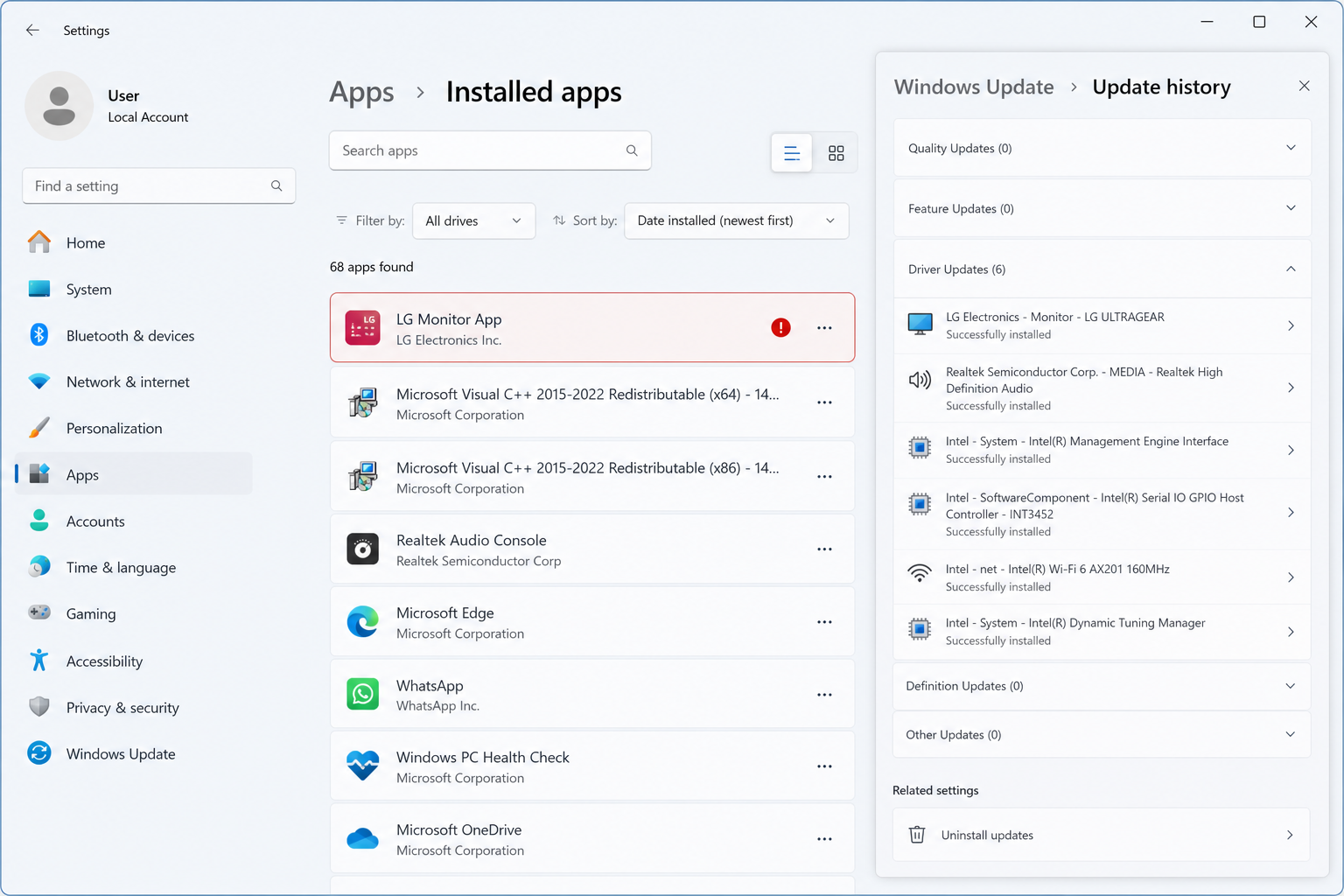
Catching a silent software install after the fact requires a methodical check. Here’s where to look on both Windows 10 and Windows 11.
Check Installed Apps for Unexpected Monitor Software
Go to Settings → Apps → Installed apps (Windows 11) or Settings → Apps & features (Windows 10). Sort by Install date — anything installed on the same day you connected a new monitor deserves scrutiny. Look specifically for:
- LG Monitor App / LG Monitor App Installer
- Alienware Command Center or Alienware OSD companion apps
- McAfee Security or McAfee WebAdvisor (if you didn’t install these yourself)
- DisplayLink Manager (legitimate for USB docking, but often bundled)
Review Windows Update History
Open Settings → Windows Update → Update history and expand the Driver updates and Other updates sections. Windows logs every automatic hardware-triggered install here, giving you a full audit trail of what arrived on your system and when.
Check the Microsoft Store for Auto-Installed Apps
Open the Microsoft Store app, click your profile icon, and go to Library. Filter by Recently installed — apps silently pushed via the device-app mechanism appear here even if they never appeared in a traditional install wizard.
How to Remove Auto-Install Adware From Your System
Removing monitor adware follows the same process as any unwanted software, with one important caveat: some OEM apps resist standard uninstallation.
Standard Uninstall via Settings
Navigate to Settings → Apps → Installed apps, locate the offending software, click the three-dot menu, and choose Uninstall. This works for most Microsoft Store-delivered apps including the LG Monitor App Installer.
Use PowerShell for Stubborn Apps
If the standard uninstall fails, open PowerShell as Administrator and run:Get-AppxPackage *LGMonitor* | Remove-AppxPackage
Substitute the app name fragment as appropriate. This forces removal of provisioned Store packages.
Scan With Windows Defender
After removing the visible app, run a full Windows Defender scan to check for any residual components. While Defender may not flag OEM adware as malware outright, a full scan ensures no hidden processes remain. For stronger coverage, a dedicated security tool from a reputable vendor is worth considering — something the Windows Defender limitations article on our blog covers in depth.
How to Block Silent Software Installs From Monitors Going Forward
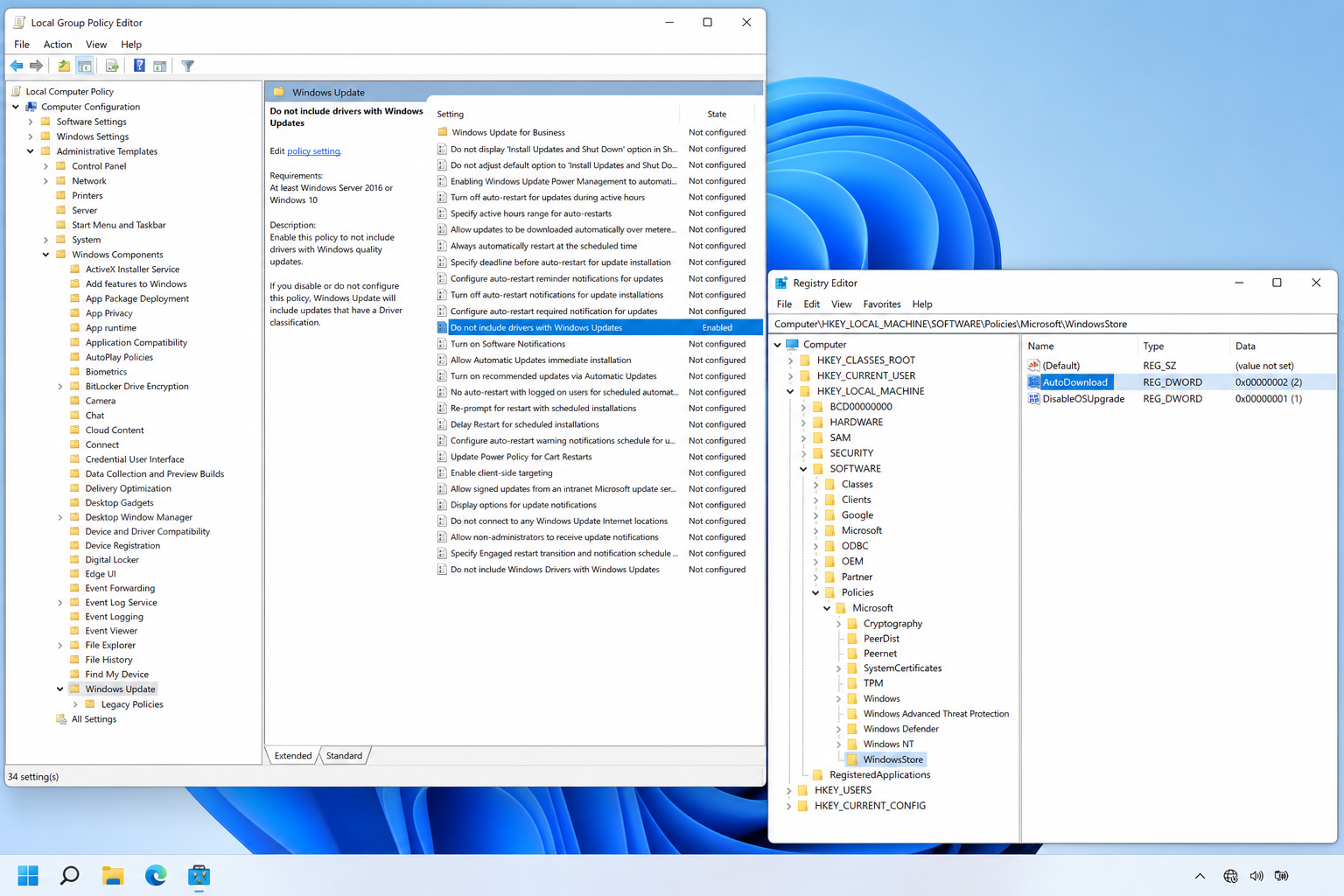
Prevention is far more effective than removal. These steps stop auto-install adware before it reaches your desktop, on both Windows 10 and Windows 11.
Disable Automatic Device App Installation via Group Policy
This is the most targeted fix. Open the Local Group Policy Editor (gpedit.msc — available on Windows Pro and above) and navigate to:
Computer Configuration → Administrative Templates → Windows Components → Windows Update
Find the policy “Do not include drivers with Windows Updates” and set it to Enabled. This prevents Windows Update from automatically pushing manufacturer-supplied driver packages that bundle companion apps.
Turn Off Microsoft Store Device App Auto-Downloads
In Group Policy, navigate to:
Computer Configuration → Administrative Templates → Windows Components → Store
Enable the policy “Turn off Automatic Download and Install of updates”. Note: on Windows 11 Home, Group Policy Editor is not available — see the registry workaround below.
Block Via the Registry (Windows Home Users)
Open Registry Editor (regedit) and navigate to:HKEY_LOCAL_MACHINE\SOFTWARE\Policies\Microsoft\WindowsStore
Create a new DWORD value named AutoDownload and set it to 2. This mirrors the Group Policy setting without requiring the Pro edition.
Disconnect the Monitor’s USB Hub
Many auto-installs are triggered specifically when the monitor’s built-in USB hub is connected, not the display signal cable alone. If you don’t use the hub functionality, simply don’t connect the USB upstream cable — this removes the device-detection trigger entirely.
Protect Your Windows Installation With Proper Licensing
One layer of protection that’s often overlooked is making sure your Windows installation is fully licensed and up to date. A genuine, activated Windows licence ensures you receive security patches promptly and that Windows Defender and related tools function at full capacity. A compromised or unactivated Windows environment is far more vulnerable to all forms of silent software installs and adware exploitation.
TopKeyShop offers genuine Windows 11 Home Retail keys from €14.70, giving you a clean, fully activated system as your security foundation. If you also want dedicated antivirus protection to complement Windows Defender, the store’s antivirus software category includes trusted options like Avast Pro and McAfee AntiVirus starting from under €11 — tools that can actively flag and quarantine adware that slips through the OEM channel.
Will Microsoft Fix the Monitor Bloatware Problem?
The honest answer is: not quickly. The device-app installation mechanism exists by design in Windows — it’s part of the Plug and Play model that makes peripheral setup frictionless for everyday users. Microsoft has acknowledged the concern in community forums but has not announced a platform-level fix that would prevent manufacturers from abusing the channel.
The responsibility for stopping monitor adware currently sits with three parties: manufacturers (who should not bundle adware in driver packages), Microsoft (who should audit Store submissions more rigorously), and you, the user (who needs to apply the preventive steps above). Until the first two clean up their act, the third option is your best line of defence.
It’s also worth monitoring whether LG or Dell/Alienware issue official statements or updated drivers that remove the adware components — both companies have faced significant backlash from the gaming and professional communities over this behaviour.
Frequently Asked Questions
Does unplugging the monitor remove the auto-installed adware?
No. Once the monitor adware is installed on Windows, disconnecting the display does not remove the software. The apps persist on your system independently of the hardware. You need to manually uninstall them via Settings or PowerShell, as described above.
Is the auto-install adware from monitors actually malware?
Technically, most OEM monitor bloatware is classified as PUA (Potentially Unwanted Application) or adware rather than malware in the traditional sense — it doesn’t encrypt files or steal passwords. However, the McAfee pop-ups triggered by the LG installer are designed to generate commercial revenue through deceptive urgency, which meets many accepted definitions of adware. Windows Defender’s PUA protection setting can flag these if enabled.
Which monitors are affected by the silent software install issue?
Reports have confirmed the issue with multiple LG monitors (particularly models with USB-C or USB hub connectivity) and several Alienware gaming monitors that include built-in USB hubs. The underlying mechanism could theoretically affect any manufacturer that submits device apps to the Microsoft Store, so the problem may be broader than the current confirmed cases.
Do I need Windows Pro to block automatic monitor app installs?
Group Policy Editor (gpedit.msc) is only available on Windows 10/11 Pro and above. However, Windows Home users can achieve the same result via a Registry Editor tweak — setting the AutoDownload DWORD value under the Windows Store policy key to 2, as detailed in the prevention section above.
Will blocking driver updates via Group Policy break my monitor?
For most users, no. Standard display drivers are delivered through Windows Update separately from OEM companion apps, and basic monitor functionality (resolution, refresh rate, HDR) does not rely on manufacturer OEM software. The only features that might require the app are proprietary controls like on-screen display menus accessed via software, custom colour profiles, or KVM switching — functionality that most users never use.
