
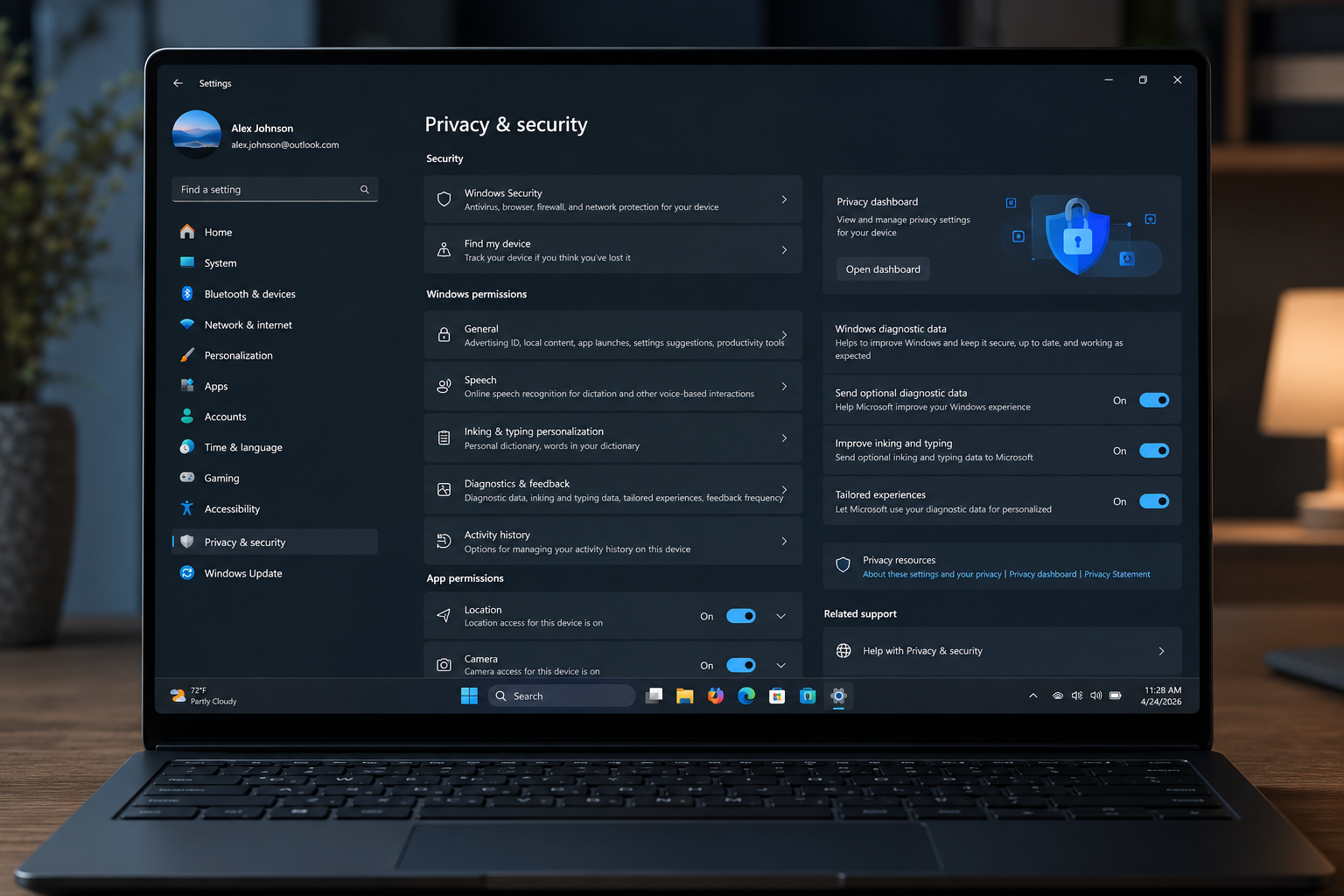
Windows 11 privacy has never been more controllable than it is in 2026. Microsoft has pushed a wave of updates to its Privacy & Security dashboard, giving everyday users far more granular command over telemetry, app permissions, and data sharing — all without needing third-party tools. Whether you’ve just activated a fresh copy of Windows 11 or you’ve been running it for years, now is the perfect time to audit and tighten your settings.
What Microsoft Changed in 2026’s Privacy Rollout
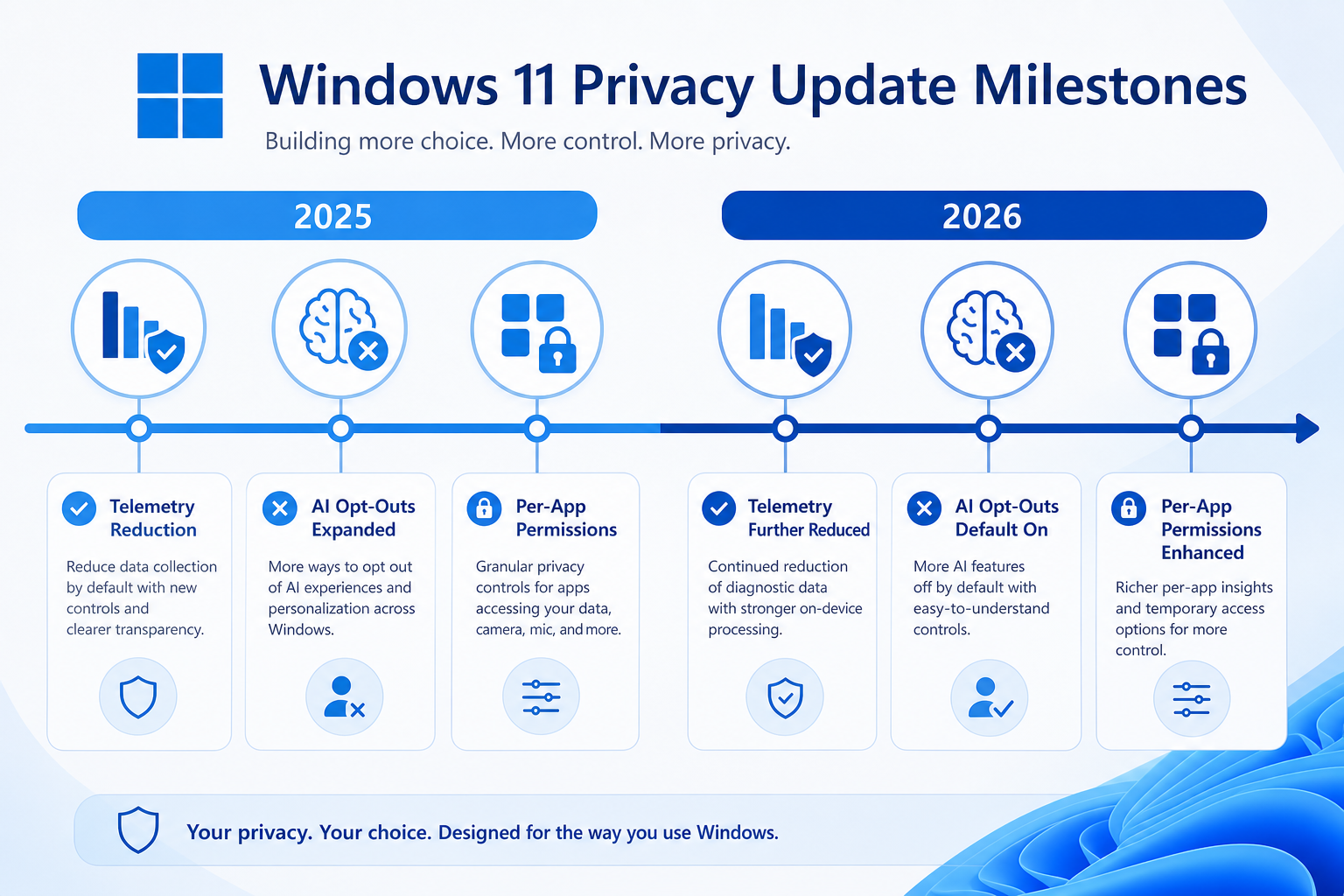
Microsoft’s 2026 updates to Windows 11 privacy controls centre on two key goals: transparency and user control. The company officially updated its Privacy Statement in early 2025 to document new Windows AI features — including Recall and Click to Do — and has since extended those disclosures to the in-OS dashboard. The most important structural changes are:
- Expanded diagnostic data controls — Users can now switch between Required and Optional telemetry with a clearer explanation of what each level sends.
- Per-app permission granularity — Camera, microphone, location, and contacts access can each be toggled per application, not just system-wide.
- AI feature opt-outs — Recall (the AI-powered screenshot indexer) ships disabled by default on most hardware and requires explicit opt-in.
- Inking and typing personalisation — Now separated from the general diagnostics toggle, so you can disable keypress analysis independently.
- Advertising ID reset — A one-click reset button for your unique ad identifier is now visible directly inside Privacy & Security settings.
According to Microsoft’s official documentation on configuring Windows diagnostic data, even at the Required telemetry level Windows sends a baseline of device health, compatibility, and update data — so “Required” does not mean zero data. However, switching from Optional to Required dramatically reduces what leaves your machine.
The Most Important Windows 11 Privacy Settings to Change
Not every toggle in the privacy dashboard carries the same weight. These are the settings that have the biggest practical impact on your Windows 11 telemetry footprint.
1. Diagnostic Data — Set to Required Only
Go to Settings → Privacy & Security → Diagnostics & Feedback. Set Diagnostic data to Required diagnostic data. This is the single highest-impact Windows 11 privacy action you can take — it cuts the volume of behavioural telemetry Microsoft receives by a significant margin versus the Optional tier.
2. Tailored Experiences — Off
Still in Diagnostics & Feedback, turn off Tailored experiences. This stops Microsoft from using your diagnostic data to show personalised tips, ads, and recommendations inside Windows itself.
3. Inking & Typing Personalisation — Off
Under Privacy & Security → Inking & Typing Personalisation, disable the toggle. This stops Windows from building a local dictionary of your keystrokes for autocomplete — and stops that data from being synced or reported.
4. Advertising ID — Disabled or Reset
Navigate to Privacy & Security → General and turn off Let apps show me personalised ads by using my advertising ID. For extra measure, use the new Reset button to generate a fresh ID before disabling. This severs the link between your browsing behaviour and targeted ad networks that hook into Windows apps.
5. Location Services — Per-App Control
Under Privacy & Security → Location, keep the system toggle on if you use maps or weather apps, but scroll down and disable location access for every app that doesn’t genuinely need it. Most apps request location access opportunistically — they don’t need it.
6. Camera and Microphone — App by App
Check Privacy & Security → Camera and Microphone. Disable access for any app you don’t actively use for video or voice. A messaging app you haven’t opened in months should not have a live microphone grant.
7. Activity History — Off
Under Privacy & Security → Activity History, disable Store my activity history on this device and ensure Send my activity history to Microsoft is turned off. This kills the Timeline data feed that Windows was silently building in the background.
Windows 11 Telemetry: What It Is and Why It Matters
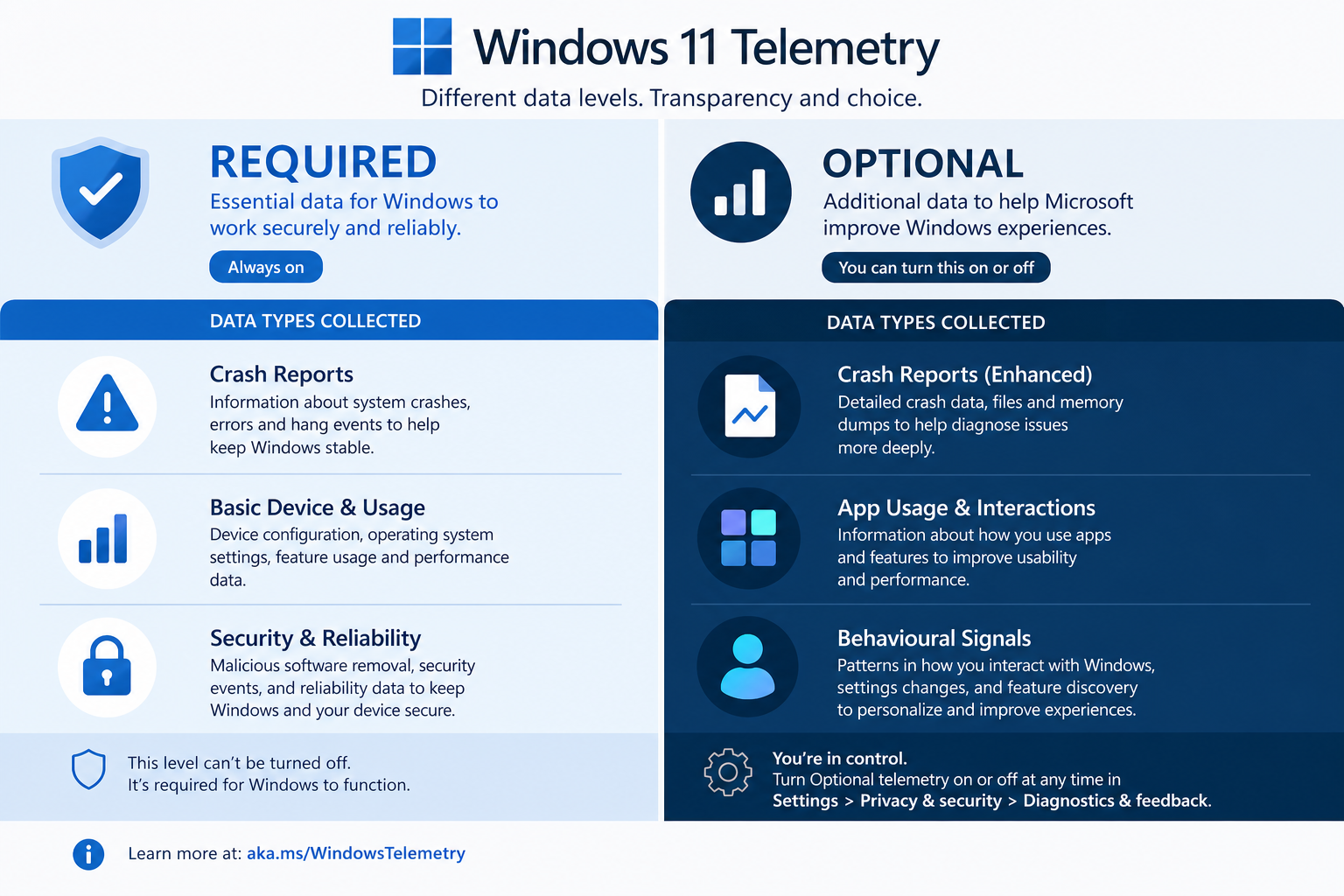
Windows 11 telemetry refers to the streams of data Windows automatically sends to Microsoft’s servers — crash reports, app usage frequency, hardware sensor readings, feature engagement metrics, and more. At the Optional tier, this data includes behavioural signals: which features you click, how long you spend in apps, and typing pattern samples. At the Required tier, it narrows to device health and update compatibility signals.
For most home users, Required-only telemetry is the pragmatic sweet spot: you still receive reliable Windows Update delivery (which uses some telemetry to assess compatibility), but the behavioural profiling is effectively stopped. Enterprise administrators can go further, enforcing a Security-level telemetry cap via Group Policy — a Windows 11 Pro or Enterprise privilege not available on Home editions.
One concrete figure worth knowing: Microsoft states that Optional diagnostic data can include up to thousands of distinct event types per session, while Required diagnostic data is capped at a far smaller, documented set. Switching from Optional to Required is therefore not a cosmetic change — it is a structural one.
Windows Privacy Settings for AI Features: Recall and Click to Do
The 2026 Windows 11 privacy landscape is impossible to discuss without addressing the AI-powered features Microsoft introduced with Copilot+ PCs. Recall — which periodically screenshots your screen and indexes the content for search — was the most controversial, generating enough backlash that Microsoft made it opt-in by default. Here’s how to manage these Windows privacy settings:
- Recall — Settings → Privacy & Security → Recall & Snapshots. Keep this off unless you specifically want it. If it is on, you can delete stored snapshots and exclude specific apps from being captured.
- Click to Do — This AI overlay analyses what’s on screen to suggest quick actions. Disable it under Settings → System → Copilot+ Features if you prefer not to have on-screen content analysed in real time.
- Search Highlights and suggested content — Under Privacy & Security → Search Permissions, turn off Show search highlights to stop web content from appearing in your Start menu search.
Step-by-Step: A Quick Windows 11 Privacy Audit
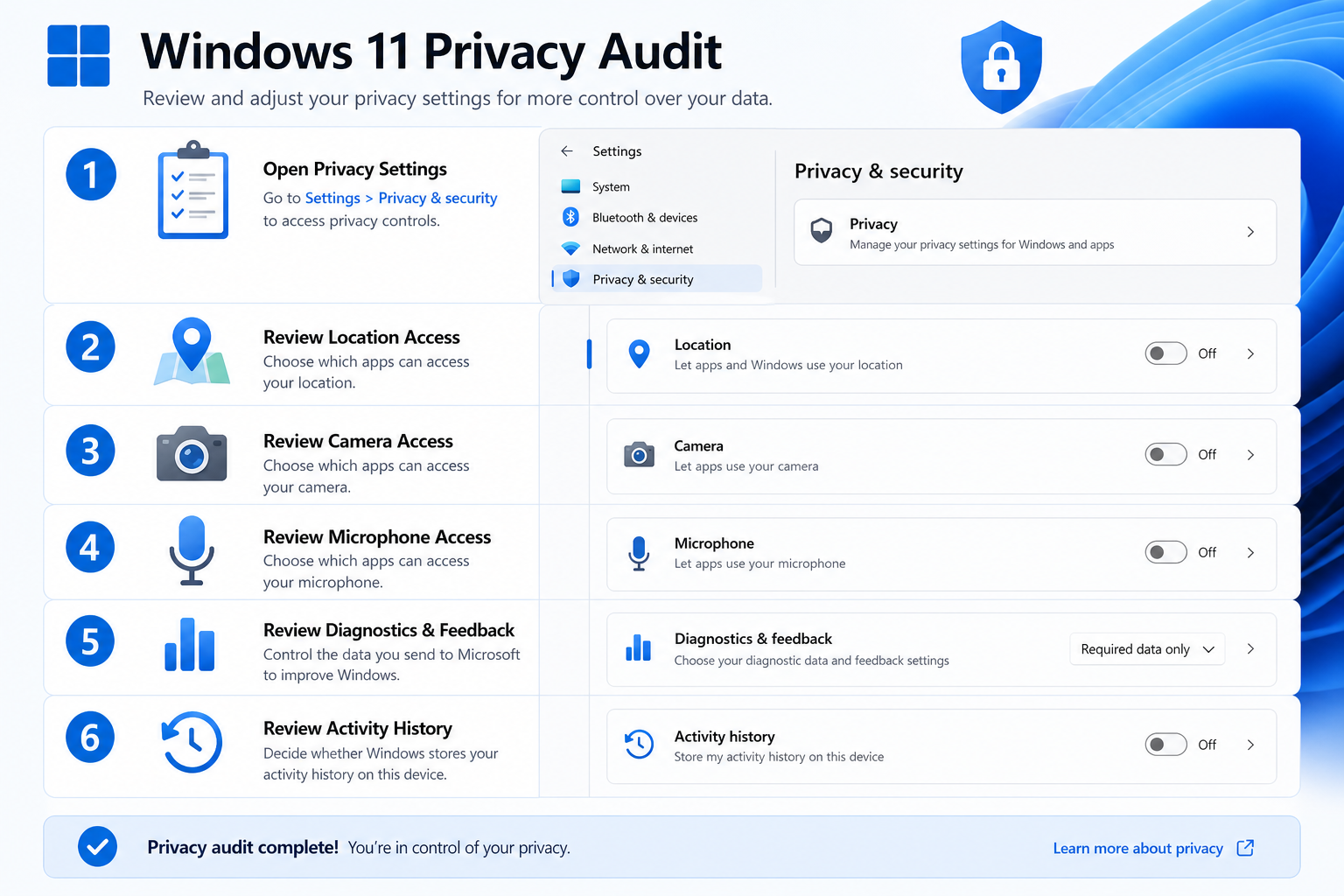
Run through this checklist after every major Windows Update to make sure new features haven’t reset your preferences — a documented issue with several 24H2 builds.
- Open Settings (Win + I) → Privacy & Security.
- Click Diagnostics & Feedback → set to Required → disable Tailored experiences → disable Inking & Typing personalisation → turn off Feedback frequency.
- Click General → disable all four toggles (ad ID, language list access, app launch tracking, suggested content).
- Click Activity History → disable both toggles.
- Click Search Permissions → disable cloud content search for Microsoft account and work/school accounts, disable search highlights.
- Click Location, Camera, Microphone, Voice Activation, Notifications, Account Info, Contacts, Calendar, Phone Calls, Call History, Email, Tasks, Messaging, Radios, Other Devices, App Diagnostics — review each and revoke access for apps that don’t need it.
- Click Recall & Snapshots → confirm Recall is off unless you opted in deliberately.
This full audit takes around 10 minutes and is the most comprehensive Windows 11 privacy review a non-technical user can perform without third-party software.
Do You Need a Windows 11 Licence to Access These Settings?
Yes — all of the Windows 11 privacy features described in this guide are available on activated, genuine copies of Windows 11 Home and Pro. Running an unactivated or non-genuine copy can limit access to certain Settings pages and leaves your system without security patches, which ironically creates far greater privacy and security risks than any telemetry setting. If you’re still on Windows 10 (which reaches end of support in October 2025) or running an unactivated system, upgrading to a genuine Windows 11 licence is the most important privacy step you can take.
At Top Key Shop, you can pick up a genuine Windows 11 Home licence key for as little as €14.70, with instant email delivery and a 100% money-back guarantee. If you need the additional enterprise-grade privacy controls — Group Policy telemetry caps, BitLocker, and Hyper-V — the Windows 11 Pro OEM key is available from €7.75. Both are genuine, manufacturer-supported keys delivered within minutes of purchase.
Windows 11 Privacy vs Windows 10: Is the Upgrade Worth It?
From a Windows privacy settings perspective, Windows 11 is meaningfully more transparent than Windows 10. The dashboard is more logically organised, per-app permission controls are more granular, and the 2026 updates have made AI feature opt-outs visible and accessible. Windows 10’s privacy dashboard was more fragmented, with some controls buried in the Settings app and others only reachable via the Control Panel or Group Policy.
Windows 10 reaches end of mainstream support in October 2025, after which it will no longer receive security patches. From that point on, staying on Windows 10 for privacy reasons is counterproductive — an unpatched OS is a far larger attack surface than any telemetry Windows 11 sends. The privacy argument for staying on Windows 10 collapses entirely once patches stop.
FAQ
Does disabling telemetry break Windows Update?
No — setting telemetry to Required diagnostic data does not break Windows Update. Required telemetry includes the compatibility and device health signals that Windows Update needs to assess which patches apply to your hardware. What it removes is the behavioural and usage data Microsoft collects at the Optional tier. Your updates will continue to arrive normally.
Can I turn off Windows 11 telemetry completely on a Home edition?
Not entirely. Windows 11 Home enforces a minimum of Required diagnostic data — there is no zero-telemetry option available through the standard Settings UI on Home. Users on Windows 11 Pro or Enterprise can use Group Policy to enforce a Security-level cap, which is the closest to zero that Microsoft’s built-in tools allow. Third-party tools exist to push further, but they carry risks including instability and broken update delivery.
Does Recall collect my passwords or banking information?
Microsoft states that Recall is designed to filter out sensitive fields — password boxes, payment card fields, and content flagged as private by apps. The snapshots are also processed and stored locally on your device, not uploaded to Microsoft’s servers. However, the safest approach remains keeping Recall disabled unless you specifically want the feature, as the data is stored in a local database that — on systems without full-disk encryption — could theoretically be accessed by other processes.
How often should I audit my Windows privacy settings?
After every major Windows Update is a good rule of thumb. Several Windows 11 updates in the 24H2 cycle have been documented as resetting certain privacy toggles to their defaults, particularly around search permissions and tailored experiences. A quick 10-minute audit after each cumulative update ensures your preferences stick. Setting a monthly calendar reminder is a practical approach for most users.
Are these Windows 11 privacy settings different for work PCs?
Yes, significantly. On a work or school PC managed by an organisation, your IT administrator may enforce specific telemetry and privacy policies via Group Policy or Microsoft Intune. In those cases, some Settings toggles will appear greyed out with a note that “your organisation manages this setting.” You should not attempt to override these controls — contact your IT department if you have privacy concerns about a managed device.
