
A windows 11 clean install wipes your drive and installs the OS fresh, and you can keep your existing license activated as long as it’s already linked to your Microsoft account or tied to your motherboard’s UEFI firmware (OEM activation). The trick isn’t the installation itself — it’s making sure your digital license is properly linked before you wipe anything.
Most people who lose activation after reinstalling Windows didn’t actually lose their license — they just reinstalled before confirming the link existed, or they installed the wrong edition. This guide walks through the full process so your Windows 11 clean install goes smoothly and your copy reactivates automatically the moment you’re back online.
What Is a Windows 11 Clean Install (And Why Do It)?
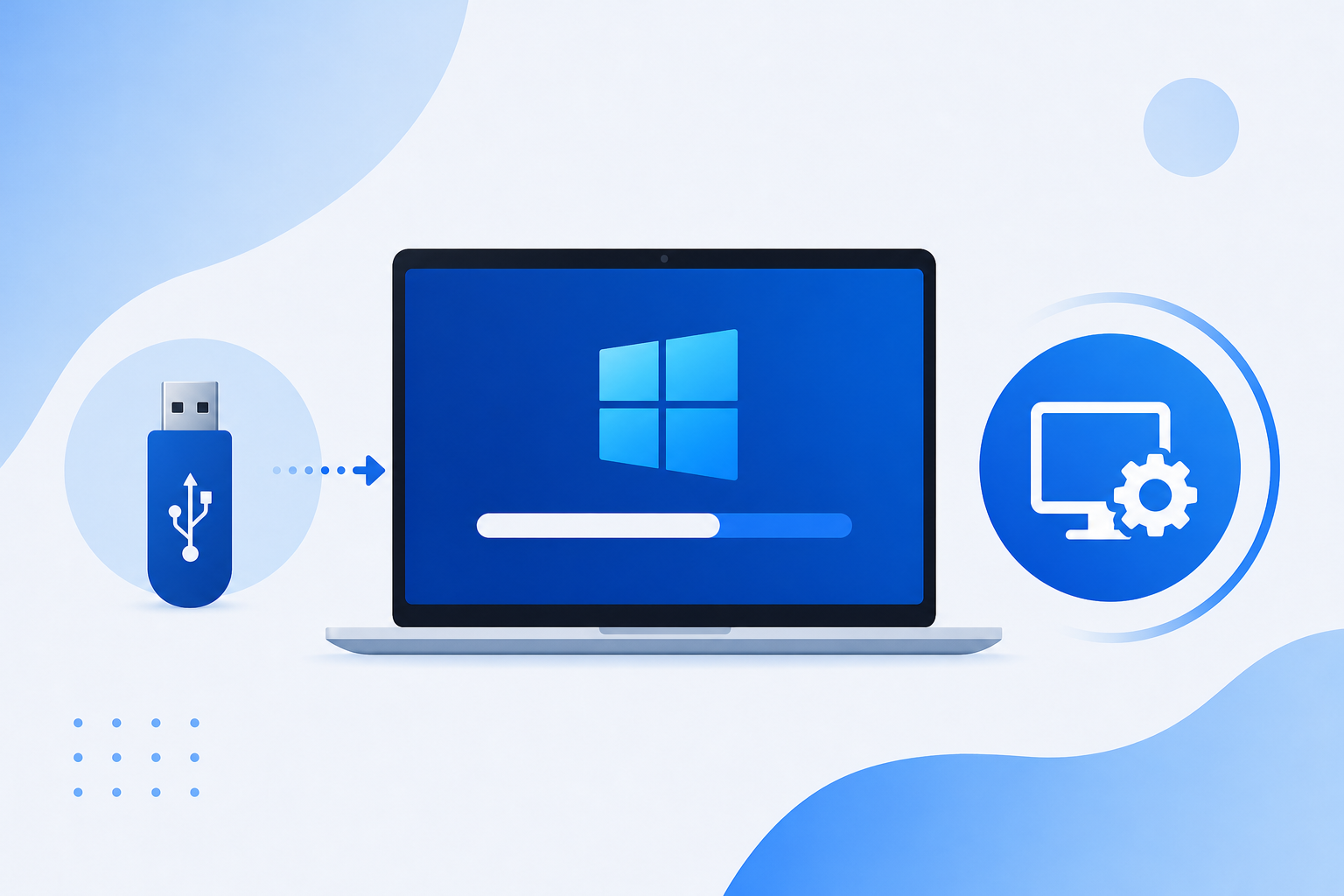
A clean install means formatting the system drive and installing Windows 11 from scratch, rather than upgrading on top of your existing setup. Unlike an in-place upgrade, it removes old drivers, leftover registry clutter, bloatware, and any accumulated system issues — giving you a genuinely fresh environment.
People choose a clean install over an upgrade when they’re dealing with persistent performance problems, preparing a PC for resale, switching from a heavily customized Windows 10 setup, or simply want to start over without years of installed-and-forgotten software weighing the system down. The tradeoff is that a clean install erases everything on the target drive, including your license activation state if it isn’t properly recorded with Microsoft first.
Before You Start a Windows 11 Clean Install: Pre-Checklist
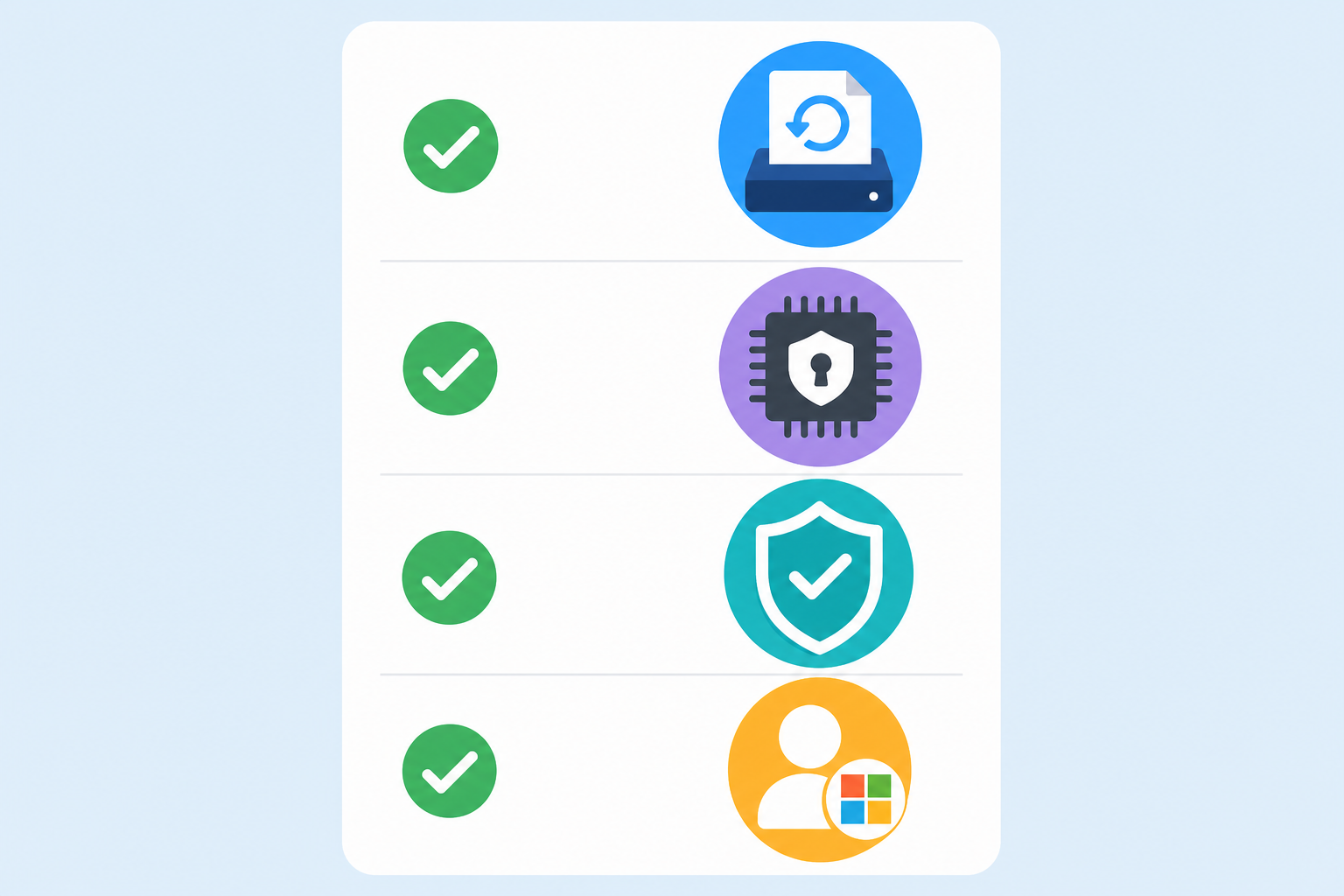
Do three things before you touch the installer: confirm your license is linked, check hardware compatibility, and back up your files. Skipping any of these is the single biggest cause of post-install activation failures.
Confirm Your Digital License Is Linked to Your Microsoft Account
Windows 11 uses what Microsoft calls a digital license (sometimes called digital entitlement) instead of a physical product key stored on a sticker. This license is tied either to your Microsoft account or to your motherboard’s hardware ID. Before reinstalling, check that yours is linked:
- Go to Settings > System > Activation and confirm it reads “Windows is activated with a digital license linked to your Microsoft account.”
- If it only says “digital license” without mentioning your Microsoft account, click Add an account and sign in before you proceed.
- If you’re currently activated with a 25-character product key rather than a digital license, keep that key written down somewhere safe — you’ll need to re-enter it manually.
Linking the license to your Microsoft account is the single most reliable safeguard for a windows 11 clean install, because Microsoft’s activation servers can then recognize your hardware automatically, even after a full wipe.
Check System Requirements (TPM 2.0, Secure Boot, RAM)
Windows 11 enforces stricter minimums than Windows 10 did. Before a clean install, confirm your PC has a 64-bit CPU, at least 4 GB of RAM, 64 GB of storage, UEFI firmware with Secure Boot enabled, and a TPM 2.0 chip. Microsoft’s PC Health Check tool will flag any of these that are missing or disabled in BIOS.
Back Up Your Files and Product Key
A clean install erases the target drive completely, so back up documents, photos, browser bookmarks, and app settings to an external drive or cloud storage first. If you’re activated via a traditional 25-character key rather than account-linked digital license, note it down — Command Prompt’s slmgr /dli or a key-finder utility can retrieve it if you’ve misplaced it.
How to Do a Windows 11 Clean Install Step by Step
The process involves creating bootable installation media, booting from it, and completing setup without entering a product key until after reinstalling — letting Windows auto-activate against your linked account. Here’s the full sequence.
Step 1 – Create Windows 11 Installation Media
- Download the Media Creation Tool from Microsoft and run it as Administrator.
- Select “Create installation media for another PC.”
- Choose your language, Windows 11 edition, and 64-bit architecture.
- Select a USB flash drive with at least 8 GB of free space (its contents will be erased) or generate an ISO to burn to DVD.
Step 2 – Boot From USB and Start the Clean Install
- Insert the USB drive into the target PC and restart it.
- Enter the boot menu (usually F2, F12, Delete, or Esc) and select the USB drive.
- Choose language, time, and keyboard layout, then click Install Now.
- When prompted for a product key, click “I don’t have a product key” — this lets setup proceed without one, which is exactly what you want for an account-linked digital license.
- Select Custom: Install Windows only, pick the drive, delete existing partitions if doing a full wipe, and let setup format and install.
Step 3 – Reactivate Windows 11 After Clean Install
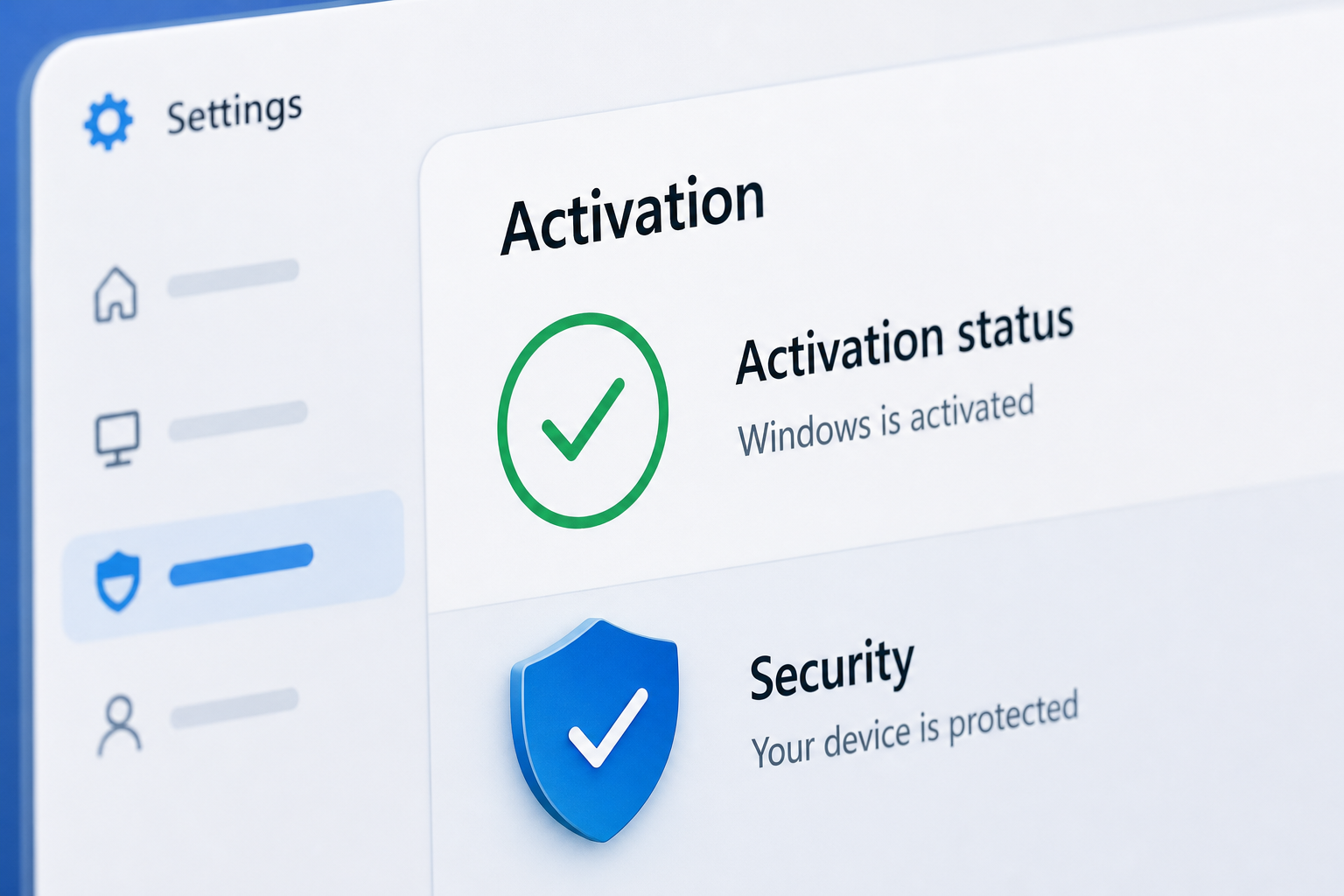
Once Windows 11 finishes setup, sign in with the same Microsoft account the license was originally linked to and connect to the internet. Activation typically completes automatically within a few minutes. To confirm it worked, go to Settings > System > Activation and look for “Windows is activated.” If it hasn’t triggered automatically, run the built-in Activation Troubleshooter from that same screen — it specifically handles hardware-change and reinstall scenarios. Our own step-by-step Windows 11 Pro installation and activation guide covers the exact menu paths if you want a visual walkthrough.
Common Reactivation Problems After a Windows 11 Clean Install
Most activation failures after a clean install trace back to one of three causes: the license wasn’t linked to a Microsoft account beforehand, the wrong edition was installed, or the hardware changed significantly.
- Wrong edition installed: A Home license won’t activate on a Pro install, and vice versa. Digital licenses are edition-specific.
- Major hardware change: OEM licenses tied to the motherboard won’t transfer if you’ve replaced the motherboard — that requires contacting Microsoft support to re-link the license to your account.
- Signed into the wrong Microsoft account: If you have multiple Microsoft accounts, make sure you sign in with the one the license was actually linked to.
- Offline during setup: Activation needs an internet connection to phone home to Microsoft’s servers; it won’t complete while offline.
According to Microsoft’s own reinstallation guidance, linking your digital license to a Microsoft account before any reinstall is the recommended safeguard precisely because it decouples activation from the physical drive being wiped.
Clean Install vs Upgrade Install: Which Should You Choose?
Choose an upgrade install if your current Windows 10 or Windows 11 setup is healthy and you just want the newer OS without reconfiguring everything; choose a clean install if you’re troubleshooting persistent issues, changing drives, or want a genuinely fresh start. An upgrade preserves apps, files, and settings automatically. A windows 11 clean install preserves none of that locally — but as covered above, it does preserve your activation, provided the license groundwork was done first.
If you’re not sure which path fits, a reasonable rule of thumb: upgrade if things currently work fine, clean install if you’re already planning to reinstall drivers or wipe the drive anyway.
Buying a Genuine Windows 11 License Before Your Clean Install
If your current installation was never properly licensed, or you’re setting up a new build entirely, you’ll need a genuine key before you can activate post-install. Top Key Shop sells genuine Windows 11 Pro license keys with official download links and fast email delivery, including the Windows 11 Pro Retail 64-bit key, which is especially useful for a clean install since retail keys aren’t tied to a single motherboard the way OEM keys are — making future reinstalls simpler.
Whichever key you choose, enter it after setup completes rather than during the installer, so Windows has a chance to check for an existing digital license first.
FAQ
Will I lose my Windows 11 license if I do a clean install?
No, not if your digital license is already linked to your Microsoft account before you wipe the drive. Sign back into that same account after the clean install and activation typically restores itself automatically within minutes.
Do I need my product key for a windows 11 clean install?
Not if your license is account-linked — you can skip the key prompt during setup entirely. You only need a physical 25-character key if your current activation isn’t tied to a Microsoft account.
How do I check if my digital license is linked to my Microsoft account?
Go to Settings > System > Activation before reinstalling. If it reads “digital license linked to your Microsoft account,” you’re covered; if not, click Add an account and sign in before wiping the drive.
What if Windows 11 won’t activate after a clean install?
Run the Activation Troubleshooter under Settings > System > Activation, confirm you installed the correct edition (Home vs Pro), check your internet connection, and make sure you signed in with the right Microsoft account.
Can I do a clean install on a new motherboard and keep the same license?
OEM licenses are tied to the original motherboard and generally won’t transfer to new hardware without contacting Microsoft support. Retail and account-linked digital licenses transfer more easily since they’re tied to your Microsoft account rather than the board itself.
