
 How to Download, Install, and Activate Office 2021 Professional Plus for Windows
This guide walks you through how to install Office 2021 Professional Plus, including how to download and activate it. Activation is done through a one-time key.
Don’t Have a License Yet? Get Yours Below
Before installing Office 2021 Professional Plus, make sure you have a valid activation key.
All our licenses include:
-
✉️ Instant email delivery
-
✅ Secure checkout
-
🔐 Lifetime activation
-
📎 Official Microsoft download links
-
🛠️ Free support if you need help
👉 Choose your version and get started:
-
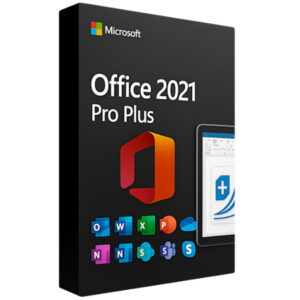
Office 2021 Pro Plus for Windows – OEM
€15.90 Add to cart -
 SALEBest Selling
Office 2021 Professional Plus for Windows – Retail
Original price was: €39.90.€19.80Current price is: €19.80.Add to cartBLACK FRIDAY MONTH11/30/2026 23:59:59 -

Office 2021 Pro Plus Bind to Account for Windows
€104.50 Add to cart
✅ Before You Begin
-
You’ll need a Windows PC
-
Internet connection is required for activation
-
Your license key
⚠️ Important:
One key can be used only one time for one activation on one installation.
Once activated, Office 2021 Pro Plus is licensed for lifetime use on that installation.
Depends on your purchased product If you need to reinstall in the future on the same or a new machine, you’ll need to purchase a new key.
Important Notice:
Before proceeding with the installation, ensure that all previously installed Microsoft Office versions are fully uninstalled from this device. This includes removing any remaining Office components or traces. Once the system is clean, you may proceed with the new installation.
💻 Installation on Windows
OPTION 1:
1. Go to the official Office setup page:
2. Sign in with your Microsoft account
-
Use your existing Microsoft account or create a new one
3. Enter your 25-character product key
-
Click Next to redeem it
-
This step unlocks your Office 2021 Professional Plus download link
⚠️ Although you’re signing in, the license will not bind to your account — it’s used only for access yo the latest download link.
4. Choose your language and version
-
Select your preferred language
-
Click Download
5. Run the installer
-
Open the downloaded
.exesetup file -
Installation may take a few minutes depending on your system
OPTION 2:
1. Download the installation file
You can also install additional languages later by going to:
File → Options → Language → Add a Language
🌐 Other Available Languages
- 👉 Download Office 2021 Pro Plus – Croatian (Croatia)
- 👉 Download Office 2021 Pro Plus – Czech (Czech Republic)
- 👉 Download Office 2021 Pro Plus – Dutch (Netherlands)
- 👉 Download Office 2021 Pro Plus – Estonian (Estonia)
- 👉 Download Office 2021 Pro Plus – Finnish (Finland)
- 👉 Download Office 2021 Pro Plus – French (France)
- 👉 Download Office 2021 Pro Plus – German (Germany)
- 👉 Download Office 2021 Pro Plus – Greek (Greece)
- 👉 Download Office 2021 Pro Plus – Hebrew (Israel)
- 👉 Download Office 2021 Pro Plus – Hungarian (Hungary)
- 👉 Download Office 2021 Pro Plus – Italian (Italy)
- 👉 Download Office 2021 Pro Plus – Kazakh (Kazakhstan)
- 👉 Download Office 2021 Pro Plus – Lithuanian (Lithuania)
- 👉 Download Office 2021 Pro Plus – Norwegian Bokmål (Norway)
- 👉 Download Office 2021 Pro Plus – Polish (Poland)
- 👉 Download Office 2021 Pro Plus – Portuguese (Brazil)
- 👉 Download Office 2021 Pro Plus – Portuguese (Portugal)
- 👉 Download Office 2021 Pro Plus – Romanian (Romania)
- 👉 Download Office 2021 Pro Plus – Serbian Latin (Serbia / Montenegro)
- 👉 Download Office 2021 Pro Plus – Slovak (Slovakia)
- 👉 Download Office 2021 Pro Plus – Slovenian (Slovenia)
- 👉 Download Office 2021 Pro Plus – Spanish (Spain)
2. Mount the image file
-
Locate the
.imgfile you downloaded -
Double-click it to mount it as a virtual CD
-
If it doesn’t open automatically:
-
Open File Explorer
-
Go to This PC
-
Look for the new virtual CD/DVD drive and open it
-
🛠️ Other Ways to Mount a .img File in Windows
- ✅ Option 1: Use the Right-Click Menu
-
Right-click the
.imgfile -
Choose “Mount” from the context menu
If “Mount” isn’t listed, try Option 2 or 3 below.
- ✅ Option 2: Use File Explorer’s Ribbon Menu
-
Select the
.imgfile -
At the top of File Explorer, go to the Manage / Disk Image Tools tab
-
Click Mount
- ✅ Option 3: Use Windows PowerShell
-
Right-click Start and open Windows PowerShell (Admin)
-
Run this command:
Replace the path with the actual location of your
.imgfile.
- ✅ Option 4: Use Third-Party Software (if needed)
If none of the above work, you can use free tools like:
-
PowerISO (free version supports mounting)
These tools create a virtual drive and automatically mount the .img file when opened.
OPTION 3: Bind To Account
 Installation on Windows
-
Go to the official Microsoft setup page:
 https://setup.office.com
-
Sign in with your Microsoft account
• Create a new one if needed -
Enter your 25-character product key
• Click Next to redeem the license
• The key will now be permanently linked to your Microsoft account -
Download the installer
• Choose Windows version if prompted
• Click Install to begin the download -
Run the installer
• Open the downloaded.exefile
• Follow the on-screen instructions to complete setup - Activate by login with the same account you used to register the key when prompted for activation, or open any word or excel file, go to file>account and login with the same account you used to register the key.
3. Install Office 2021 Professional Plus
-
Run
Setup.exefrom the mounted virtual drive -
The installation will start automatically
-
Wait for it to finish (no Microsoft account required)
🔐 Activate Office 2021 Professional Plus
-
Open any Office app (e.g., Word or Excel)
-
Go to File → Account → Activate Product
-
Choose “I have a product key”
-
Enter your 25-character activation key
-
Click Activate
✅ If successful, your product will display:
“Product Activated”
🧠 Troubleshooting Tips
-
Double-check for typos when entering the key
-
Ensure your internet connection is stable
-
If the setup file doesn’t run, try running it as administrator
-
Still having trouble? Contact our support below
🤝 We’re Here to Help
-
📧 Email: support@topkeyshop.com
-
💬 Live Chat: Click to Chat
-
📞 Phone/WhatsApp: +44 7848 404693
✅ Ready to Get Started?
If you don’t yet have your key, get a genuine Office 2021 Professional Plus license now:
🎯 Instant delivery, secure activation, and expert support included.
👉 Buy Office 2021 Professional Plus from Top Key Shop
